1.24.2019

What’s New in iOS 12.2


On Thursday, Apple seeded the first developer beta of iOS 12.2, and with it brought new features to the mix.

Apple added quite a bit of new items to its mobile operating system with iOS 12.2. We have put together a quick list of some of the bigger new additions, which you can find below. Of course, two of the biggest new features includes Canadian support for Apple News, and “Hey Siri” support for AirPods 2 (which are still not even official). Here’s the rest:


HomeKit TV Support and Controls: Apple has already announced third-party TVs from the likes of Vizio and Samsung will support AirPlay 2 this year. iOS 12.2 lays the groundwork for that. The beta includes support for third-party TVs, but also adds the ability to add certain TVs to the list of devices that can be sent content.


Updated Screen Mirroring Icon in Control Center: Apple has updated the Screen Mirroring icon in Control Center, making it a bit more obvious that you are mirroring two screens.


Faster Way to Add Money to Apple Cash: Apple has added an “Add Money” option when you tap on the Apple Pay Cash in the Wallet app. This makes it easier to quickly add funds.


A New AirPlay Icon: Apple has updated the AirPlay icon in Control Center, putting it more in line with the icon on other platforms like macOS.


Apple Shows Better Info for Unsecure Websites: Apple now shows “Not Secured” on an unsecured website in the URL, making it more obvious that a site isn’t offering an HTTPS connection.


Apple Maps Can Now Show Air Quality: You can find air quality for an area within the stock Weather app, but Apple is now bringing that information to Apple Maps. It can be turned on in the Maps Settings section.Must Read:If you lost data after you updated to a new iPhone, you can always use Gihosoft iPhone Data Recovery to get the data back from the old iPhone or backup.


Gihosoft Free iPhone Data Recovery:iphonerecovery.com

So, there we go. Quite a bit to add!

1.21.2019

How To Set Fingerprint Lock In Redmi Note 5 Pro


And for the benefits, setting fingerprint lock is sure convenient too. Just hold your device, place your finger on the scanner and whoosh! Your device will now get unlocked without having to type any password, prin or pattern. So, if you are someone who has Redmi Note 5 Pro and is scratching your head wondering how to set a fingerprint lock then you are at the right place! Just follow the steps that are mentioned below and learn how you can set a fingerprint lock in Redmi Note 5 Pro.

Redmi Note 5 Pro
How To Set Fingerprint Lock In Redmi Note 5 Pro:


To set fingerprint lock on your Redmi Note 5 Pro, go to your device’s “Setting” (you can find this in your app drawer, it has a gear-like icon).


Next, go to the subheading of “System & Device” and under that tap on “Lock screen & Password”.


Now, go to the first option of “Add fingerprint”, and then enter your device’s password or pin (if any).


Next, to add your fingerprint, place your finger on the sensor (this will be at the back of your device underneath the camera lens).


Once you placed your finger on the sensor, keep lifting it after you feel a vibration. As your finger will get register, the diagram of the finger on your device’s screen will get in blue color. So, move your finger accordingly to cover the sensor completely. (You will be guided with on-screen instructions throughout the process).


After that, your finger will get added, and then enter the name of your fingerprint lock by tapping on “fingerprint1”. Once entered tap on “Done” from the bottom of your screen and that’s it your fingerprint lock will get registered.

Once, you have set your fingerprint, you will get an option to either set it as Lock Screen, Privacy Password, or as an App Lock. You can select your preferred option by turning on the toggle.

Note: You can also add multiple fingerprints too with the same method and steps that are mentioned above. But the maximum limit of fingerprints that you can register is five.

Now, if you want to delete your fingerprint lock for whatever reason you can still do it, by just following the steps that are mentioned below.
How to delete fingerprint lock in Redmi Note 5 Pro:


Go to Settings and then under the subheading of “System & Device” tap on “Lock screen & Password”


Next tap on “Manage fingerprints” and then you will get the name of your added fingerprint, so tap on it.


Now, tap on “Remove fingerprint” and confirm your command by pressing “OK”. And that’s it done, your fingerprint will now be removed.

So, these were the steps through which one can easily set fingerprint lock in Redmi Note 5 Pro without any hassle. Also, the fingerprints can be deleted at any point or their name can also be changed. And if you still have difficulty to understand the process, don’t worry on-screen details are always there to guide you.

Sponsor ads:

Gihosoft Free iPhone Data Recovery:https://www.gihosoft.com/iphone-data-recovery-free.html

Gihosoft iPhone Data Recovery Free

Free iPhone Data Recovery Software for Windows/Mac

Recover up to 12+ types of files, including contacts, SMS, photos, WhatsApp, Viber, notes, etc.

Restore lost data from iOS devices directly or from iTunes and iCloud backup

Recover iPhone data lost due to iOS upgrade/jailbreak, accidental deletion, device lost or broken

Support all the latest iPhone, iPad and iPod Touch

Both Free and Pro version.

If you lost data after you updated to a new iPhone, you can always use Gihosoft iPhone Data Recovery to get the data back from the old iPhone or backup.You may also like: iphonerecovery.com

If you use android phones, please choose Gihosoft Android Data Recovery.

With Gihosoft Android Data Recovery, no longer afraid of data loss!

Must read:Youtube video downloader for pc

Gihosoft RePicvid Free Photo Recovery Software provides a free photo recovery software for windows to help users recover the deleted or lost photo for free.

Jihosoft Android Data Recovery: the best Android Data Recovery software for Windows and Mac to recover deleted contacts, messages, photos, videos, WhatsApp and etc from Android devices.Tips:How to transfer messages from iPhone to iPhone


jihosoft Free iPhone Data Recovery

1.15.2019

FullMusic11 – Bring back full screen in Music app


HOW FULLMUSIC11 WORKS

Beginning with iOS 10, Apple replaced the full-screen Now Playing view of iOS 9 with a containerized view.

Fortunately, there’s a way to go back to the full-screen Music app with this new tweak.

As its name suggests, FullMusic11 brings back the iOS 9-style full screen to the iOS 11 Music app. It is developed by tweak developer Soh Satoh.

Not only does it enables the full-screen mode for the Music app, but it also dynamically changes the color of the status bar, offers ColorFow 4 integration, and hides and change the position of the various user interface elements.

Check out the video demonstration of this tweak below.


Yalu Jailbreak@Yalujb

FullMusic11 brings back the full screen in Music app (dev - @soh_satoh). #Cydia #tweak

41

2:04 AM - Jan 15, 2019

See Yalu Jailbreak's other Tweets

Twitter Ads info and privacy

The Fullmusic11 tweak is released in two different versions – Full and Lite. The “Lite” version only enables the full-screen view whereas the “Full” version offers a lot of other customization options apart from the full-screen view.

Before you decide to install this tweak on your device, take a quick look at the difference between the stock view and the full-screen view in the “Now Playing” screen.
STOCK VIEW


FULL-SCREEN VIEW


SETUP


Enable – Enables the full-screen view in the Now Playing section.


Using ColorFlow 4 – Enables ColorFlow integration in the Music app.


Colorize Status Bar – Colors Status bar based on the background color. It also includes support for BatteryPercentX.


Hide an Arrow on Music App – Hides the top arrow on the Music app.


Draw Borders for Shuffle/Repeat – Separates the shuffle and repeat buttons from the main Now Playing view with a border.


Hide Lower Buttons on Now Playing – Hides the shuffle and repeat buttons.


Set Top Inset for Now Playing – Sets the top margin for the entire Now Playing section.


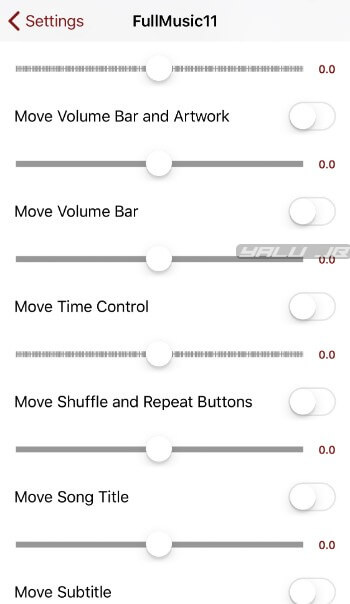
Move Volume Bar and Artwork – Moves volume bar and artwork up or down.


Move Volume Bar – Moves volume bar up or down.


Move Time Control – Moves time control up or down.


Move Shuffle and Repeat Buttons – Moves shuffle and repeat buttons up or down.


Move Song Title – Moves the song title up or down.


Move Subtitle – Moves the song subtitle up or down.


Move Control Buttons – Moves control buttons up or down.


Customize the various options and values however you want. Just make sure you use the “Respring” button to restart the Springboard.

If you mess something up, just scroll down and press the “Reset All Settings” to switch to the default values.
DOWNLOAD FULLMUSIC11 CYDIA TWEAK

While it can in no way replace many of the much more in-depth tweaks out there, FullMusic makes for a great addition to your existing setup.

For those of you who are into theming and user interface customization, this jailbreak tweak is worth an install if you are shooting for an iOS 9-esque setup. Recommended.

FullMusic11 is available for download on Packix repo for $1.00. It is compatible with iOS 11 and 12.
KNOWN ISSUES AND BUGS


In the latest version, some closing animations appear to be a bit clunky. The developer intends to fix this issue in the next version.

Sponsor ads:

Gihosoft Free iPhone Data Recovery:https://www.gihosoft.com/iphone-data-recovery-free.html

Gihosoft iPhone Data Recovery Free

Free iPhone Data Recovery Software for Windows/Mac

Recover up to 12+ types of files, including contacts, SMS, photos, WhatsApp, Viber, notes, etc.

Restore lost data from iOS devices directly or from iTunes and iCloud backup

Recover iPhone data lost due to iOS upgrade/jailbreak, accidental deletion, device lost or broken

Support all the latest iPhone, iPad and iPod Touch

Both Free and Pro version.

If you lost data after you updated to a new iPhone, you can always use Gihosoft iPhone Data Recovery to get the data back from the old iPhone or backup.You may also like: iphonerecovery.com

If you use android phones, please choose Gihosoft Android Data Recovery.

With Gihosoft Android Data Recovery, no longer afraid of data loss!

Must read:Youtube video downloader for pc

Gihosoft RePicvid Free Photo Recovery Software provides a free photo recovery software for windows to help users recover the deleted or lost photo for free.

Jihosoft Android Data Recovery: the best Android Data Recovery software for Windows and Mac to recover deleted contacts, messages, photos, videos, WhatsApp and etc from Android devices.Tips:How to transfer messages from iPhone to iPhone

jihosoft Free iPhone Data Recovery

1.14.2019

How to Delete iCloud Account Online

How to Delete iCloud Account Online

To delete iCloud account means losing most of your data and services. Secondary applications will also be deleted. Before you tap on the delete button, check on the Disabling iMessage section, especially if you had switched to another type of phone.

Download all files and messages from iCloud and save it on your PC or external hard drive. This is important because you will not have access to iCloud Drive Storage and iCloud Mail.

Steps on how to delete iCloud account online:

Step 1: Go to Apple ID website, https://appleid.apple.com/.

Step 2: Enter your email address and password to log in to your Apple ID account.

Step 3: Click on “get support PIN” or “Support PIN” depending on your authentication settings.

Step 4: Click on the blue button on the right side to generate PIN.

Step 5: Note down the PIN, you will need later.

Step 6: Go to https://support.apple.com/en-us/HT201232 to review phone number.

Step 7: Call a phone number in your region to connect to an automated assistant.

Step 8: To speak to a representative, say “Apple ID” then agree to speak to a representative by saying “yes please”.

Step 9: Ask for account deletion and share your iCloud account details including the Support PIN you wrote down.


Sponsor ads:

Jihosoft iPhone Data Recovery:https://www.jihosoft.com/recovery/ios-data-recovery.html

Jihosoft iPhone Data Recovery

Free iPhone Data Recovery Software for Windows/Mac

Recover up to 12+ types of files, including contacts, SMS, photos, WhatsApp, Viber, notes, etc.

Restore lost data from iOS devices directly or from iTunes and iCloud backup

Recover iPhone data lost due to iOS upgrade/jailbreak, accidental deletion, device lost or broken

Support all the latest iPhone, iPad and iPod Touch.

Tips:

How to transfer messages from iPhone to iPhone

Gihosoft Free iPhone Data Recovery:https://www.gihosoft.com/iphone-data-recovery-free.html


Gihosoft iPhone Data Recovery Free

12.19.2018

Best Anti-Theft Apps for Android Phones 2019

Best Anti-Theft Apps for Android Phones 2019

We know you take good care of your phone. Of course you do. Who wouldn’t be careful with a device that probably cost you several hundred of dollars? But the fact of the matter is, unless you’re leaving your phone in a locked safe in your bedroom, there’s always the chance that it could get stolen. Over 2 million mobiles are stolen every year in the US[1] and subscriber fraud costs mobile phone companies more than 100 million every year. So statistically there’s a fair chance that one day that mobile could be yours. Which is why we’re taking a look at anti-theft apps. If you’ve got an Android, here are the best apps for protection.


Also Read: 10 Best Free Security Apps for Android Virus Protection


Why Install an App at All?

Other than being careful, there’s not a lot that you can do to prevent your phone being stolen. What you can do is protect your data and possibly even find your phone. A solid, anti-theft app should allow you to lock down or even erase your personal data (such as banking apps, Facebook passwords, and contacts) and allow you to track the phone as well (just in case you happened to leave it somewhere or so that the police can track it down in some circumstances).

Installing such apps isn’t a requirement. But the consequences of not doing so can be severe. Got that Amazon app on your phone? Then your thief is free to purchase things on your account as long as it’s logged in. Got a banking app? Then things are even worse if it allows the thief to transfer funds. Trust us, you want to protect your data in the best way possible, and that means being prepared for the worst.
The Default Option

Android users do have a built-in option for anti-theft precautions, and it’s pretty simple to set up (no downloads or payment necessary, so there’s no excuse not to do this one). Head into your Settings menu, scroll down to the section titled “Permission,” and then hit “Security.” Then simply check the box next to “Android Device Manager.” You can now access your phone remotely from your regular Google account (through Gmail is the easiest way). This default option allows you to remotely lock, track, or wipe data. The upsides are that it’s free and easy; the downsides are that these functions are pretty basic. This means that you might want to opt for a better, third party option, such as one of the below.


Also Read: 10 Best Free Virus Removal Apps for Android
Prey

Prey is a very inclusive app that allows you to track not only your phone, but also tablets, laptops, and any other electronic device that you may have. Register your device into the app, and should it go missing head to the Prey website and mark it as lost. You will then be able to track or lock your device. Simple. But you can also send a message that will display on your phone’s lockscreen (we imagine something like “Give back my phone”…), make the phone sound a loud alarm, or even take photos with the phone that are then displayed on your PC (giving you a look at the criminal if nothing else).

You can also set up Prey with a “Control Zone” (ideally around your home or workplace), and you’ll receive a notification if your device leaves that zone. Prey is free, but a premium option allows you to add more Control Zones and devices.


Lookout

Lookout is a great app, but it doesn’t top our list simply because the free version is very limited. Using the free version of Lookout lets you track your device and scan apps you download to see if they’re safe, which isn’t especially impressive.

However, if you’re willing to pay for the premium version you get some awesome features. Premium Lookout lets you limit app permissions, as well as monitoring websites to make sure they’re not stealing any info from you. You can also remotely lock and wipe your phone, and there’s the possibility to back up your call logs and photos at the same time. Finally, you’ll get theft alerts if anything strange happens on/to your devices, and breach reports if any of the services you use are hacked.


Also Read: 10 Best Free Cleaner and Booster Apps for Android Phones
Cerberus

Cerberus gives you tons of features. Not only does it let you lock or wipe your phone online (as well as making the phone ring to sound an alarm), but it will also let you do the same thing via SMS (which is great since your stolen phone might not necessarily have an internet connection). You can be alerted if your SIM card is changed; you can also remotely take video or photos, both of which are pretty cool. But the coolest function is something called AutoTask, which lets you set up “if X, then Y” situations. For example, you can set up a task that says “if the wrong password is entered, set off the alarm.”


Cerberus is free for a week, after which you have to buy a yearly subscription (but it’s cheaper than most apps). However, the downside to Cerberus is that it’s pretty complicated to use and isn’t particularly intuitive. If you’re tech minded, Cerberus is the best anti-theft choice out there, but the less device savvy might want to move on to our final option.


Where’s My Droid

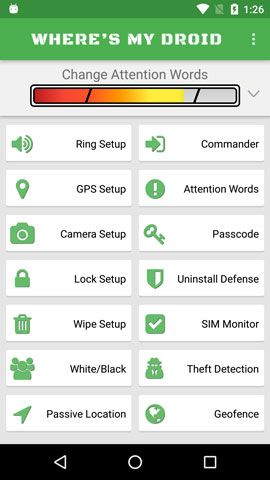
Our pick for best anti-theft app right now is probably Where’s My Droid, simply because it offers many of the same features as Cerberus, and yet is much more user friendly. The free version will let you set a passcode on your phone remotely, locate your device, make the device ring, or send an alert if the SIM card is changed (important so you know that the phone number no longer works). All of that is pretty good, but there’s more.

Upgrade to Where’s My Droid premium (for a small, one-time payment) and you get rid of the ads that run along the bottom of your screen. You also add the ability to remotely lock and wipe your phone (as well as hiding the app icon for Where’s My Droid, so no one can delete it), and to remotely take pictures with your device. Upgrade even more to the Elite version (for a yearly subscription) and you can see location history for the device, stats, and can set up control zones (like with Prey).


Also Read: How to Find a Misplaced Android Phone Even It’s in Silent Mode


Protecting your phone is obviously important, and the above are your best bets for anti-theft apps, with some being better than others. Be prepared: download your apps now; you might be glad you did if someone ever gets their hands on your phone.


12.18.2018

7 Best Canva Alternatives For Android


Canva is undoubtedly one of the most popular free online graphic designing tool that most of the people rely on. As it helps you to quickly design banners and graphics for social media. And in this world of the Internet and technology, social media sure plays an important role in making your business rise in the eyes of your audience. As visual content has an importance, and it doesn’t matter what your profession is, if you want to increase your reach, your posts should have interactive images rather then just plain texts. But where do you start to make such interactive posts? And if you thought canva is your only savior in this graphic designing quest then you are wrong.


As there are a number of other apps too which sure are similar to the functions and appearance of Canva. So, there is no harm in switching between some alternative apps to widen up your reach. But don’t worry you don’t have to search for different apps as here is a list of 7 Best Canva Alternatives For Andoird that you surely must consider.

Worth Reading: The Best Photo Eraser Apps for Android
7 Best Canva Alternatives For Android:


Desygner


Adobe Spark Post


BeFunky


Adobe Photoshop Express


Poster Maker & Poster Designer


Poster Maker, Flyer Designer, Ads Page Designer


Flyers, Posters, Banner, Graphic Maker, Designs
1. Desygner

Desygner is one of the best graphic design apps that lets you complete projects that look amazing and professional at the same time. The reason behind their success is that they provide with 1,000,000+ layouts and beautiful professional images that are royalty-free for use. Also, you don’t need to pay for any packs, Desygner gives you free fonts and graphics which are added daily to the app. And the best part, the app will help you in making every marketing material you ever need such as posters, business cards, menus, letters, and so much more. In addition to editing, you can also present your creation from your smartphone with no hassle. So, if you love designing and don’t want to spend your money on subscriptions then there are high chances that you will surely fall in love with Desygner app too.


Main Features:


A number of photo layouts.


Presentation sets.


Every marketing material you ever need.


Design in minutes with an easy user interface.

DOWNLOAD THIS APP
2. Adobe Spark Post

You don’t need to be a designer to create a professionally-designed template as with Adobe Spark Post you can create your own studio within your Android device. For doing so, simply pick your photos, add some text, and apply Design Filters to instantly create beautiful, eye-catching graphics within the blink of an eye. In addition, you can also make animated videos with a number of convenient features too. Also the best part, there are a number of cool features that are coming on the app very soon, so do keep your eye on them. In all, Adobe Spark Post is a great app for creating magic to your content whenever they get stricken in your head.


Main Features:


Animated video posts.


Magic layouts.


Instant sharing and sync anywhere.


Thousands of professionally designed templates.

DOWNLOAD THIS APP
3. BeFunky

If you are a selfie lover and adding filters and effects to your photos is your guilty pleasure then BeFunky is the perfect app for you. As the app has a number of effects and features that you may not find anywhere else. Also not just for filters, BeFunky is filled with powerful editing tools that will surely enhance your every shot. In addition, the app requires no registration, has no ads, and add no watermark to your images. So, get a ton of photo editing tools right in your hands and make your images more visually appealing than ever before with the BeFunky app.


Main Features:


Share photos instantly.


Amazing photo effects.


Powerful editing tools.


Goodies and stickers.

DOWNLOAD THIS APP
4. Adobe Photoshop Express

Adobe Photoshop Express is undoubtedly one of the best photo-editing tools for Android devices. As the app is stocked with a number of powerful features that are not only easy to use but will also give a professional look to your every click. Such as “perspective correction” that can straighten your crooked images, “remove noise” which will help in removing the grains out of your picture, a wide of variety of stylish texts, and the list goes on and on. With all these professional effects, Adobe Photoshop Express also has a number of common editing tools, such as filters, basic fix, photo collages and much more. So, capture, edit, organize and share professional quality images directly from the Adobe Photoshop Express app without any hassle.


Main Features:


A wide variety of grid layouts.


Customization options.


A number of filters to choose from.


Raw photo support.

DOWNLOAD THIS APP
5. Poster Maker & Poster Designer

As the name suggests Poster Maker & Poster Designer is an app which can instantly transform any plain text into an effective poster. And not just posters as with this app you can also create flyers, design a standee and many such more. Also, the app provides with all the basic as well as necessary tools that will make the look of your photos more fantastic. Such as typo fonts, fine-tuning of your photos, multiple templates, borders, frames, and significant others. In addition, you can share your creation on your social media accounts directly with the app. So, download Poster Maker & Poster Designer app and get a unique photo-editor that will make every image of your’s more appealing and fun.


Main Feature:


Design posters with/without a background image.


Many Photo Border and Frames available to add to your photos.


Ease to generate your concept.


Directly share your creation on social networking sites through the app itself.

DOWNLOAD THIS APP
6. Poster Maker, Flyer Designer, Ads Page Designer

With Poster Maker, Flyer Designer, Ads Page Designer app you can create almost anything you require. Be it a promotional poster, flyer, cover photo for your website, advertisements and many more. Also, the app is very easy to use so you don’t need to be an editing professional to edit photos in the app. In addition, the app has a wonderful collection of stickers that are specially picked to enhance to look of posters. But that’s not it, they provide with a wide range of backgrounds too so that you don’t need to waste your time in searching for the perfect back-drop. So, make amazing posters and let your inside creativity out with the Poster Maker, Flyer Designer, Ads Page Designer app.


Main Features:


Huge collection of backgrounds.


Share on social media.


Wonderful stickers specially made for poster making.


Add your text with poster design fonts.

DOWNLOAD THIS APP
7. Flyers, Posters, Banner, Graphic Maker, Designs

If you want to make a professional flyer but don’t have the necessary skills for doing that then don’t worry Flyer Maker app is here for your rescue. As the app already has many free and pro-ready-made flyer templates that are created by professional designers to help you start with your business flyer. But don’t worry you can still customize your flyer according to your need and preference. In addition to flyers, you can also create posters, banners, and other such concepts too. So, get started fast with this easy, quick and impressive Flyers, Posters, Banner, Graphic Maker, Designs app.


Main Features:


Various collection of professional and beautiful poster & flyer templates.


High-level customization support.


Cool sticker collection with adding your own option.


Autosave your work.


Easy to use.

DOWNLOAD THIS APP


So, above are the 7 best canva alternatives that will perfectly work on your Android devices. Also, most of these apps are very simple to use so you don’t have to waste much of your time in understanding them. And the main part they serve the same purpose as Canva, so there is no harm to give them a try.


So, if you find this article helpful or interesting do like and mention your views in the comment box below.


Must Check Out Posts:

10 Android Fitness Apps To Help You Shed Off Pounds

5 Best PUBG Android Emulators for PC

How to Download Instagram Videos and Photos on Android

Best 15 Nova Launcher Themes 2019

8 Best Alternatives to Polarr Photo Editor 2019

How to Remove Watermark, Logo and Date Stamp from Photos?


Jihosoft Photo Eraser

Erase unwanted objects and perfect your amazing photos!

Remove objects from photos with Photo Eraser is almost as easy as taking a shot. Now you can use this tool to erase undesirable objects from your pictures, such as tourists, watermarks, logos, texts, blemishes and other unwanted things without real photo-editing skills required at all.


Jihosoft Android Data Recovery

The most powerful and professional data recovery software for Android that can restore deleted or lost contacts, photos, videos, audios, SMS, call logs, WhatsApp chat, Viber messages from any Android devices due to accidental deletion, virus attack, formatting. It supports all popular Android smartphones and tablets like Samsung, HTC, LG, Huawei, Motorola, Nexus, etc. In the meantime, you will be guided step by step if you never used this kind of tool before.


12.12.2018

11 Common Smartphone Myths That Have Kept You in the Dark So Far 2019


If you ask 10 people about their favorite gadget, nine or maybe all of them will say that it's a smartphone. Over the course of time, a smartphone has changed from being a luxury to a necessity.

With so many people using smartphones and getting tips from various sources, some common myths have cropped up in every average smartphone user's mind. We are debunking 11 such myths so that you stop live in a fool's world.


MORE RAM EQUALS BETTER PERFORMANCE

Yes, we all have heard this one. I even believe that some device makers have also started promoting this idea.

But, fortunately, it's all a myth. If you have a device that has 4GB or even 3GB of RAM, it is capable of running Android 8.0 Oreo. There are many factors that affect the compatibility of your device with the latest operating systems, according to Google.


It's true, however, that more RAM helps the device in loading more apps at a given point of time. But, ask yourself honestly, when was the last time you were working on 4-5 apps at the same time?

RAM modules or chips for mobile devices are expensive and are directly responsible for boosting the price of the device. So, be very careful while you go ahead and fall for that phone with 8GB RAM. Always consider the kind of usage you have and then decide what's better and what's not.


HIGHER MEGAPIXEL MEANS BETTER IMAGE QUALITY

How many times have we heard this one? At least a hundred times, I guess. Quite recently, a phone launched in India that featured a whopping 24-megapixel camera at the front. But do we really need all those pixels on the selfie shooter or is it just a gimmick?


Perhaps it's not a gimmick but the picture quality is directly related to the quality of the camera sensor and the pixel size. HTC proved it to the world with its UltraPixel camera, which had a meager 4-megapixel resolution but offered near DSLR quality.

In reality, there are a number of factors that are responsible for the quality, including the pixel size because that captures all the information. Hence, bigger pixel size does offer better quality. Better optics is also important because that will be directing all the light onto the sensor. So, next time, don't fall for the fancy 30-megapixel sensor. Decide wisely.
CHARGING DEVICES OVERNIGHT DAMAGES THE BATTERY

This statement could have had some relevance if we were living in the 90's but it's a myth in the modern world all thanks to high-tech batteries. A common smartphone has several layers of protective circuits to prevent overcharging of batteries — from the charger to the phone, down to the battery itself.


Lithium-ion batteries are pretty safe to use and their lifespan doesn't get affected by recharging overnight, experts say.

However, there are a few things one should consider. Avoid overheating the device as li-ion batteries oxidize under higher temperatures, leading to a shorter battery life.
UPDATES MAKE YOUR DEVICE FASTER

If you have a phone from a global brand, chances are that you're receiving constant updates and upgrades for your device. But is it really useful?

Updates do make your devices safer but as many users have also reported, the device actually slows down over time with newer upgrades.


This primarily happens due to additional files and apps that are sometimes bundled by device makers. Even in the case of Android, different operating systems have different hardware requirement. The Android OS will only install on a device if it matches the minimum hardware requirement but the actual need keeps increasing. That happens due to more advanced visual elements and software being added on to different platforms.


4K DISPLAY IS THE BEST

This is probably the most common question smartphone buyers have in mind these days — "should I go for a 2K or a 4K display or stick to the humble Full-HD one?"

If anyone were to find an answer to this, the most obvious reply would be to go for the highest resolution. But in the case of displays, the highest available resolution is not always the best.


Take Apple for example. They have the resources to offer the highest possible resolution on their devices but they do not even go as high as Full HD. Why is it so? Well, the retina display that Apple offers is the highest resolution that the human eye can perceive, and anything above that does not look any different to us. Hence, it's practically a waste of time and money.


POWER BANKS DAMAGE YOUR BATTERY

This is a very common concern among cellphone users but there's so much more than what meets the eye. Power banks are a dime a dozen. Some offer fast charging while others offer highest-rated storage capacity but are they really damaging your battery?


The answer is simply no and there is a context to it as well. There are both branded and generic devices in the power bank market, the branded ones mostly rely on high quality charging circuits that protect the devices and charge them in a way similar to that of a regular wall charger.

However, in the case of unbranded devices, the flow of electricity can be erratic that could lead to overheating. This can damage the battery. However, I'd suggest you buy a power bank with double or more than the rated capacity of the battery of the device being charged to avoid this issue.


KILLING APPS IMPROVES DEVICE PERFORMANCE

With Android, killing background apps is a common practice. Many people believe that this leads to a better battery life and boosts the performance of the device. While clearing apps is okay occasionally, if you have developed a habit of the same, you are doing more bad than good.


Once you clear the applications, Android kills all background processes. However, this is just a temporary thing and the system restarts all applications and the processes running along with it. Quite simply, it's like restarting your car again and again. Every time the engine restarts, it actually uses up a lot more energy than what it would while running normally.
USING A FAST CHARGER DAMAGES THE PHONE

In recent times, many devices have started coming with chargers that offer the fast charge technology. Using one of these, you can recharge your device in nearly half the regular time or even less. However, many believe that fast chargers damage your phone. The truth behind this myth is that fast chargers are more of a friend than a foe.


Fast chargers deliver a higher flow of electricity compared to the normal chargers. Due to this, many garner the opinion that this damages the battery. In reality, there is a bit of truth behind this and fast chargers do heat the batteries up faster.

However, manufacturing processes and battery technology has evolved so much that modern batteries can very well negate these side effects, making fast charging absolutely safe to use.


FREE WI-FI IS SAFE TO USE

Free Wi-Fi is a boon and can be put to good use if you are able to get the access to one. However, there are a number of risks involved with its use. First, free Wi-Fi networks are mostly open and are vulnerable to man-in-the-middle attacks where hackers can extract personal information from unsuspecting users.


In certain cases, one has no other option but to use a free Wi-Fi network, for instance, when you're traveling abroad. In such cases, users must use it with precaution.

Avoid all financial transactions while using a free network, avoid sharing personal details and resort to apps that encrypt information before it leaves the device.


PLASTIC BODY IS BAD

Plastic-based smartphones are always considered to be bad by most users but does this opinion really make any sense? Frankly, no. Plastic body-based devices work as well as metal or glass-based devices and even better in some cases. It's true that they come with their own pros and cons but the benefits outnumber the negatives.


For instance, plastic devices never face reception issues like the metal ones, as metal bodies interfere with signal receptions and device makers have to find clever solutions to work around that problem. Additionally, they are much lighter than the metal and glass-based devices so they're easier to carry around.

Even if you drop a device that has a plastic body, very little to no damage happens to it while glass and metal-based devices can suffer from irreparable damages from one drop. Moreover, plastic devices are cheaper and can be produced faster.


INCOGNITO MODE PROTECTS YOUR PRIVACY

With the alarming rise in privacy issues, more and more people have started using the incognito or private browsing mode to keep their information safe. But the one thing that most people don't understand is that in such modes, only your cookies, passwords, and personal data is not shared on the web browser.


In reality, it's not a way to get a secured or encrypted connection. Internet service providers or ISPs can still see a user's browsing activity and history.

One way to keep your Internet activity safe is to find solutions such as Orbotthat encrypts the data that leaves your device and decrypts it only on the server.


SIGNING OFF

These are some of the common myths that I personally feel all smartphone users should be aware of and know the truth.

Smartphones are not that complex. We just need to mend a few ways we treat our phones and things will be smooth as silk.


ALSO READ:

9 Best Traffic Apps for Android to Make Through the Jam 2019

10 Best Free Android Contact Apps You Should Use 2019

The Best DS Emulators for Android 2019

7 Best FRP Bypass Tools to Bypass Google Account on Android 2019

Top 8 Free Equalizer and Bass Booster Apps for Android 2019

10 Android Fitness Apps To Help You Shed Off Pounds


Jihosoft Photo Eraser

Erase unwanted objects and perfect your amazing photos!

Remove objects from photos with Photo Eraser is almost as easy as taking a shot. Now you can use this tool to erase undesirable objects from your pictures, such as tourists, watermarks, logos, texts, blemishes and other unwanted things without real photo-editing skills required at all.


Jihosoft Android Data Recovery

The most powerful and professional data recovery software for Android that can restore deleted or lost contacts, photos, videos, audios, SMS, call logs, WhatsApp chat, Viber messages from any Android devices due to accidental deletion, virus attack, formatting. It supports all popular Android smartphones and tablets like Samsung, HTC, LG, Huawei, Motorola, Nexus, etc. In the meantime, you will be guided step by step if you never used this kind of tool before.