3.31.2019

Top tips and tricks to make the most of Nova Launcher 2019


Download the latest version of Nova Launcher

Nova Launcher is often cited as the killer app for customizing Android, and in the settings you'll find a trove of options to fine-tune your experience. Not only that, but it offers great performance. If you want to try out Nova Launcher for free, it's easy enough to grab from Google's Play Store from the button below.

Nova Launcher

You can also download the latest version of Nova Launcher from APKMirror, including unreleased beta versions. To get the full functionality, however, it's worth shelling out a few bucks for Nova Launcher Prime.
Nova Launcher Prime

Note: The experimental menu, the scrolling orientation, icon customization and Night Mode are available on the free version of the app. For the rest, you will need the paid app, known as Nova Launcher Prime. We recommend Prime, which is just under $5 and well worth the money for changing your Android experience forever.

Nova Launcher Prime
9 must-try features of Nova Launcher


Hidden folders


Swipe actions on apps


Swipe actions on the home screen


Double tap to lock


Smooth scrolling


Add app drawer tabs


Use emoji to label your app drawer tabs


Change scrolling orientation


Customize icons without an icon pack


Use Night Mode


Experimental features and debugging
1. Hidden folders

Here's a great way to access all your most commonly used apps quickly and without littering up your home screen. You can make an app folder that is hidden, appearing only as an icon of your choosing. When pressed, the icon will open the first app, but when you swipe up, it will open the folder, showing the full range of related apps.

I use this for my music apps, so when I press the headphones icon, Deezer opens, but when I swipe up, I see Soundcloud, Music Player, Deezer, etc.
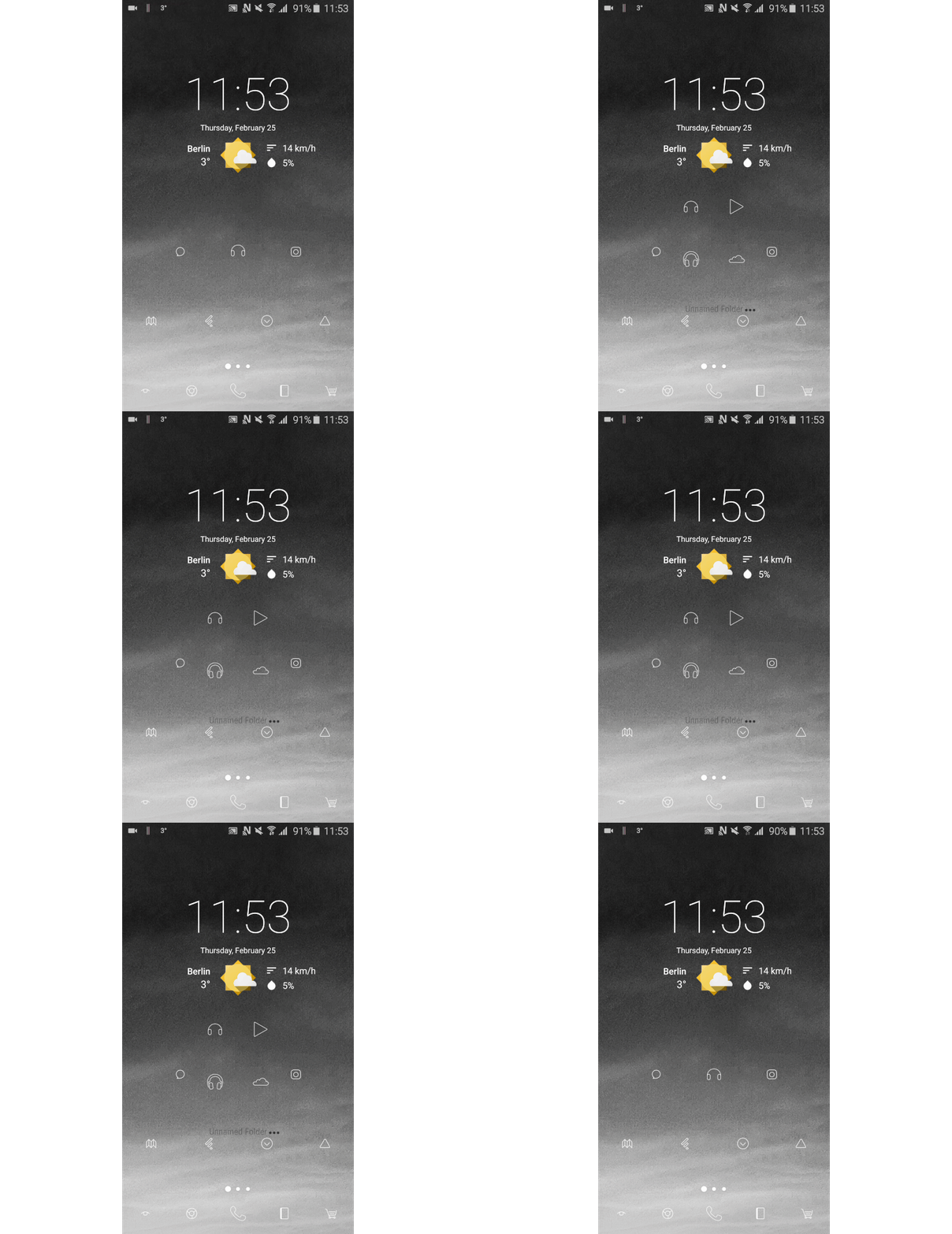
Hidden folders save space, and afford quick access to apps. / © AndroidPIT


To set this up, first drag the related apps into a folder as you would normally.


Then long-press on the folder and select Edit.


From here, you can press on the icon to choose a different one, change the name of the folder, and adjust the Swipe to open and Tap action settings.


Flick the Swipe to open toggle to the right, and, from the Tap action drop-down menu, select First item in folder.


For bonus points, make your folders transparent, too, by opening Nova Settings and going to Folders > Background and sliding Transparency to 100 percent.
2. Swipe actions on apps

Another way to make use of the swipe actions is to open apps that are related to other apps. I've got the camera icon set to open the Gallery app when I swipe, for instance, and swiping up on the Google Calendar app lets me add a reminder (download Google Inbox to access this feature). I also use this to open Messenger with a swipe up on the Facebook app icon.


To set this up, just long press on an icon, select Edit


Press on the Swipe action option to select the action of your choosing.

A small swipe up on my calendar app lets me set a reminder. / © AndroidPIT
3. Swipe actions on the home screen

You've really got to make the most of those swipe actions. The final way I use them is by adding a swipe-up gesture to the home screen to open the app drawer, a double-fingered swipe up to open Nova settings and a double-fingered swipe down to open Google Now, along with a few others, but you can choose whatever suits you best.


Just go open up Nova Settings


Head to Gestures & inputs and peruse the Gestures section and decide which actions you want to set to do what.

Home screen swipe gestures make accessing common features super quick. / © AndroidPIT
4. Double tap to lock

While this option could just be included in the section above, it seems worth highlighting, because it's something I use a lot and is easily overlooked.


Go into Nova Settings


Press on Gestures & inputs > Double tap and select Screen lock.

Now, when you issue a quick double-tap to the home screen, your device will lock. If you're not so keen on this, another very useful application is to have it launch the phone app.
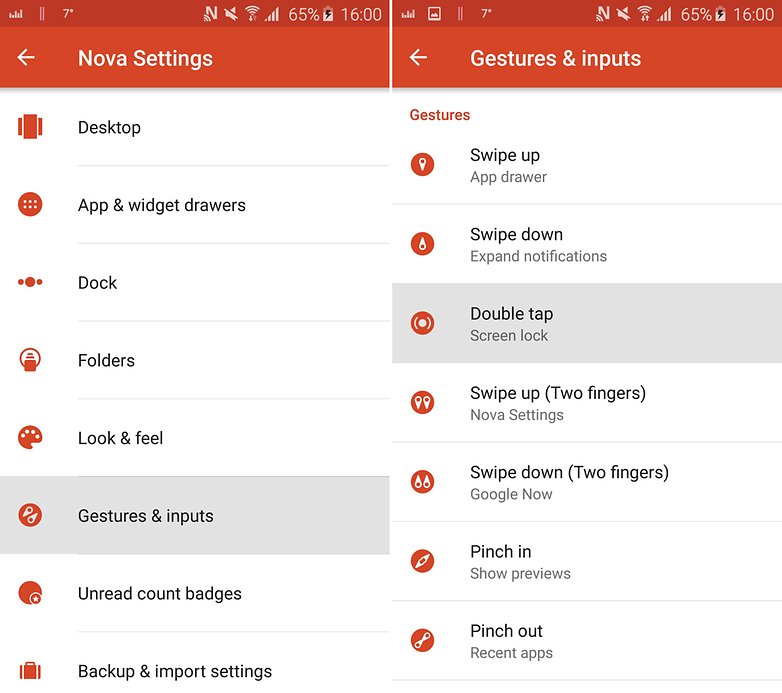
Double tap to lock is a quick software shortcut to lock your device. / © AndroidPIT
5. Smooth scrolling

If you put the same widget on multiple launcher screens and employ Nova Launcher's wipe scroll effect, it produces a really pleasing way of moving between screens, with the widget remaining in place throughout. Take a look at the gif below to see what I mean.


For this one, just add the same widget to all of your launcher screens, and then open up Nova settings.


Go to Desktop > Scroll effect and select Wipe near the bottom of the list.
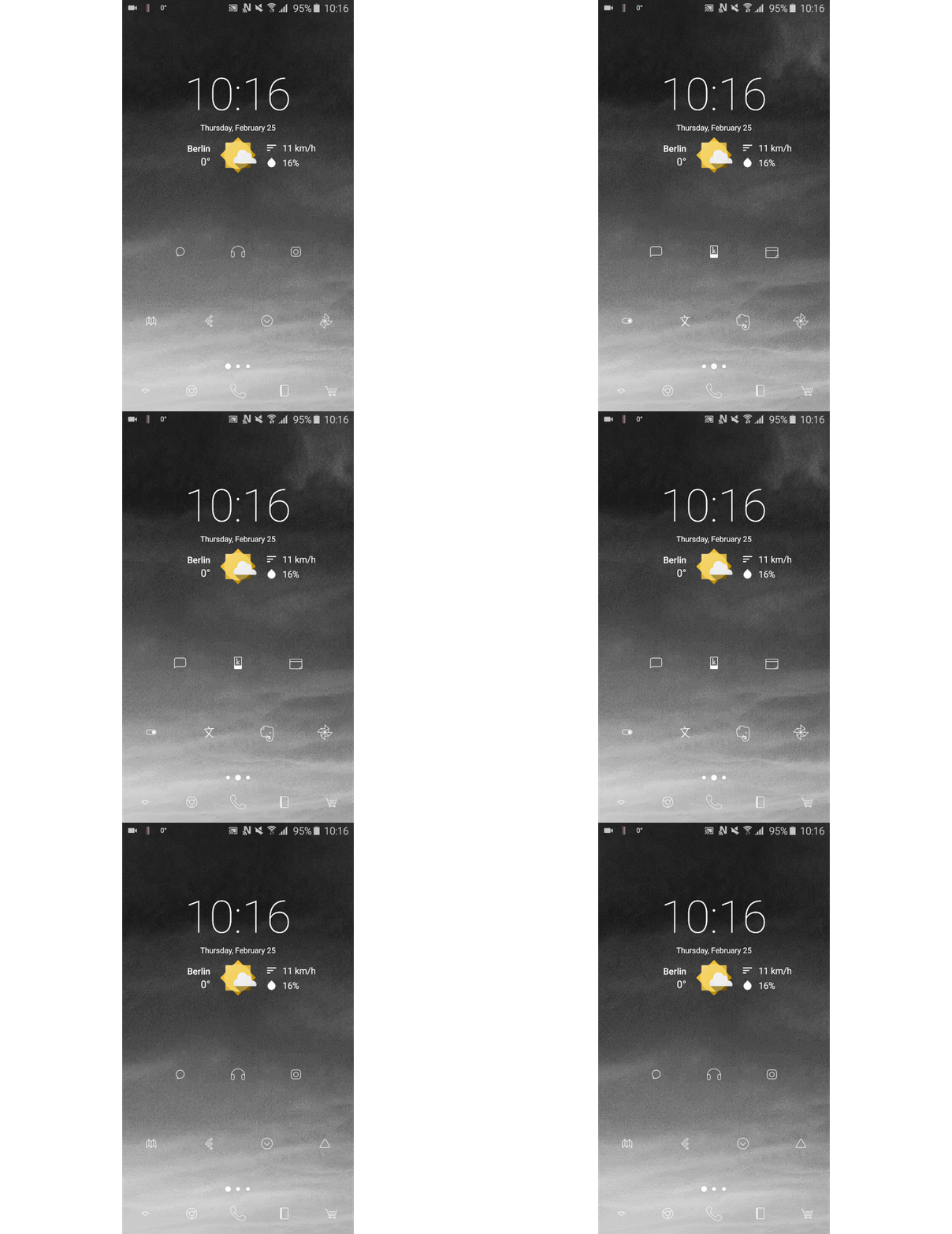
Smooth scrolling with fixed widgets just looks cool. / © AndroidPIT
6. Add app drawer tabs

The app drawer is Android's one-stop shop for all your apps, but how about making it a more discrete home-screen-style arrangement?

By default in Android, the app drawer is one page, but with Nova Launcher, you can add extra tabs to it that you can swipe left and right to scroll through. Name your tabs by category, e.g., Internet, Music and Work, and fill them up with related apps. It makes finding specific apps a whole lot easier, especially when your phone is a buzzing app metropolis.
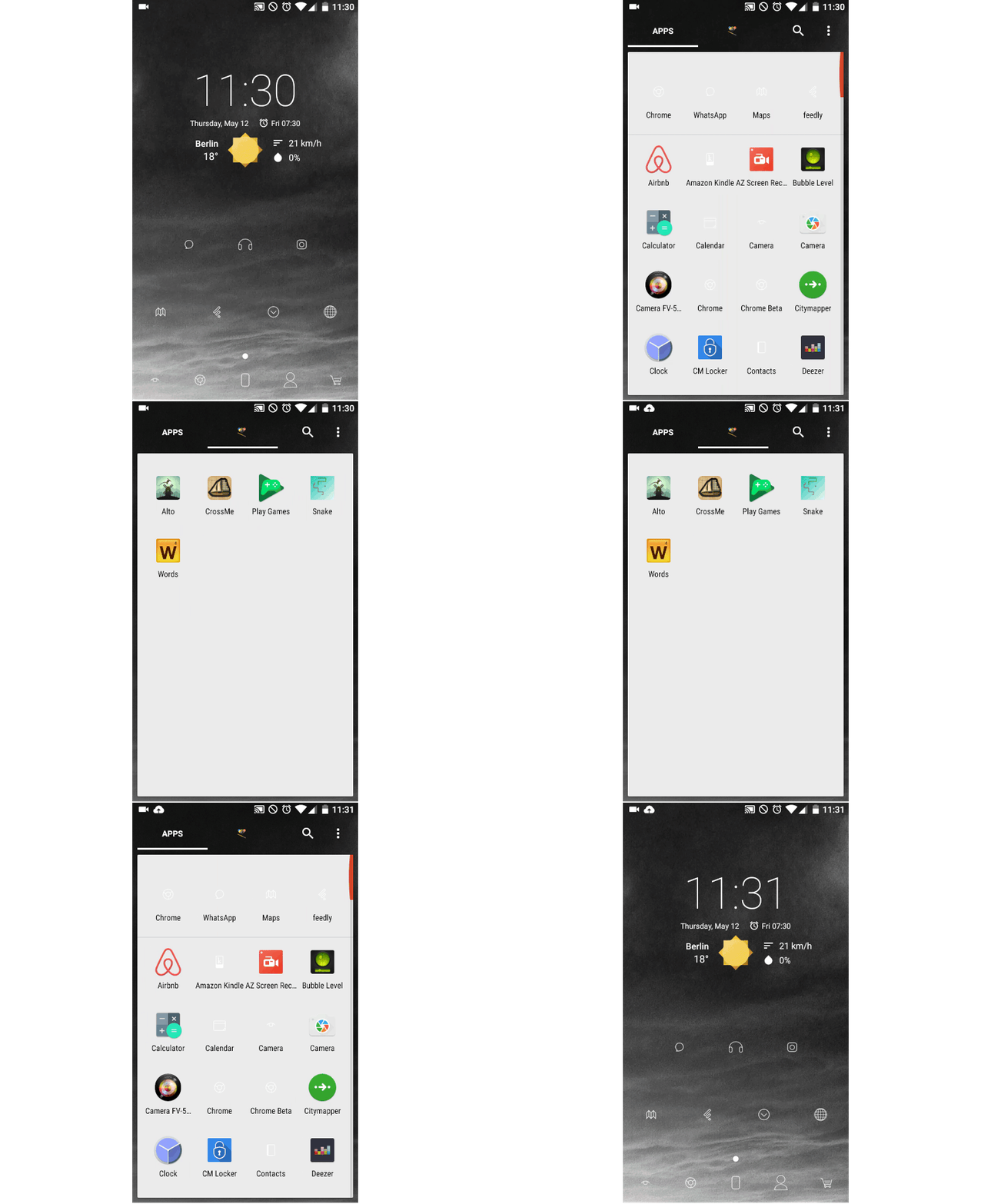
Use app drawer tabs to make your apps even more organized. / © AndroidPIT


Open Nova Settings and head to App & widget drawer.


Here, make sure Tab bar is enabled, then head down the page to Drawer groups.


On this page, you can add additional tabs by pressing the plus sign in the top-right corner.

Once you've got your tabs set up, you can choose whether apps show up only in the tab you've put them in or in the main app tab as well by long pressing on the tab at the top, selecting Edit Tab..., and then selecting or deselecting Keep apps in the main app tab.
7. Use emoji to label your app drawer tabs

Having app drawer tabs is great, but you can make the set up even cleaner by using keyboard emoji instead of words to label them.


Go to Nova Settings > App & widget drawers > Drawer groups


Press on the pencil icon beside any tab.


In the Edit window, press on the tab name, and, on the keyboard, navigate to the emoji of your choosing (you might have to use a keyboard app other than your default to access emoji, or at least the emoji you want).


As before, ensure you have Tab bar enabled on the App & widget drawers page.
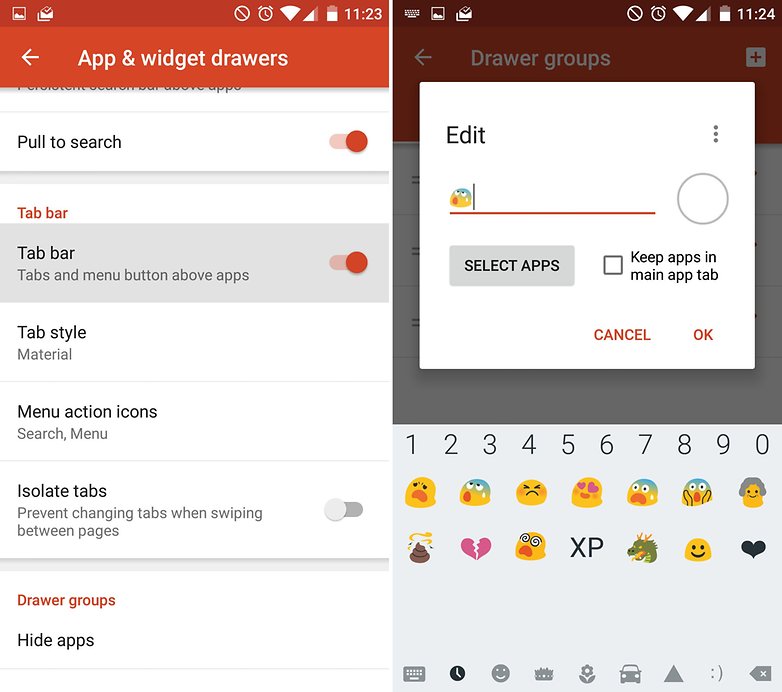
Ensure you have the Tab bar enabled to use emoji to label your app drawer tabs. / © AndroidPIT
8. Change scrolling orientation

One more app drawer tip: switch between vertical and horizontal scrolling between your app lists.


To do this, simply long hold anywhere on the display.


When the settings menu appears at the bottom right, press on it.


Select App & widget drawers > App drawer style then select which view you would like.


And that's it - go back to your app drawer and have a go!

Switch between vertical and horizontal app drawer scrolling with Nova Launcher. / © AndroidPIT
9. Customize icons without an icon pack

One of the best options a launcher provides is the ability to change app icons - it can completely revamp the look and feel of your smartphone. However, on Nova Launcher you don't really need to use an icon pack to do so. You can now customize icon shape, size and label (text under the app) even if you don't have Nova Launcher Prime thanks to Adaptive icons. Here's what you need to do:


Open Nova Settings and head to Look & feel


Tap on Icon Style. There, you will find the Adaptive icon options, which will allow you to choose from six possible icon shapes, including System, Round, Square and more. Scroll and tick Reshape legacy icons, if you want all your icons to have a uniform shape.


Scroll down and will also find options to adjust adaptive icon animations and normalize icon size.

However, you can also create a custom icon shape of your own (from the Adaptive icons settings) if none of the presets are to your liking. Playing with the values produces interesting results, as you can see from my lemon shaped icons in the screenshot below.
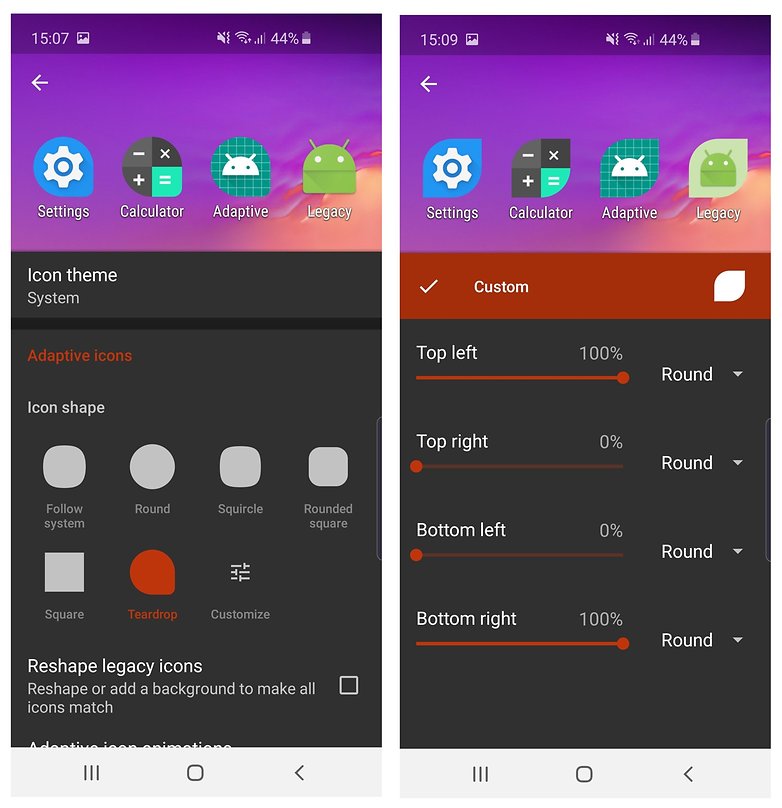
Adaptive icons are great! / © AndroidPIT

The customization options don't end there! You can even change the style of individual icons by tapping, holding and selecting the edit option. Once open, just tap on the icon itself once more. You can then select a style for it from available icon packs, built-in themes or even use a photo.


Customization heaven: the best icon packs for Android
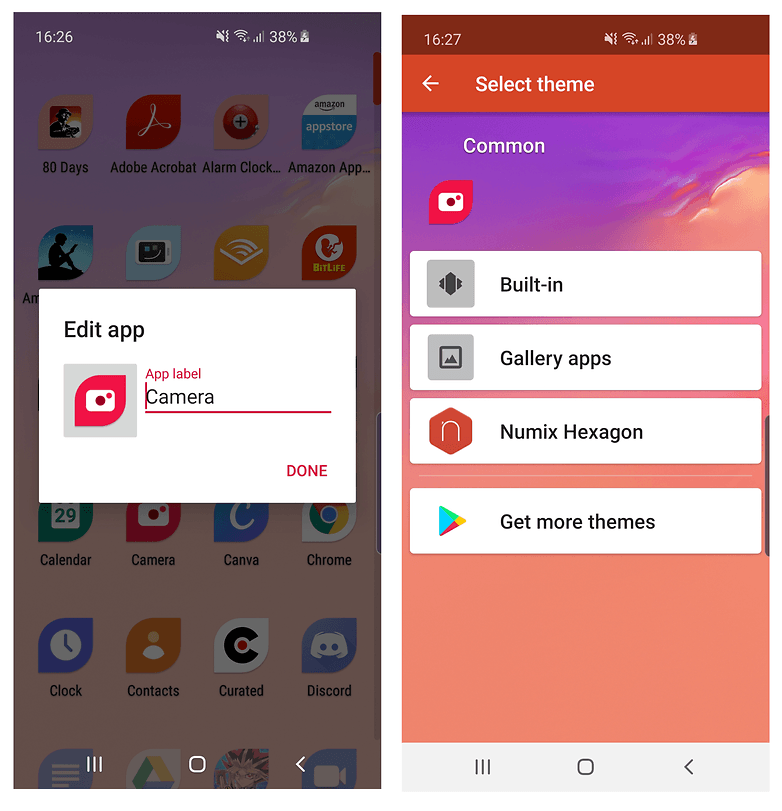
Don't like One UI's camera icon? Change it! / © AndroidPIT

Customizing the text under icons or removing it completely is also an option on Nova Launcher. Head to App drawer, then Icon Layout. From there you can change the font, color and size of the text. It even allows you to add shadow to the icon labels and to choose whether you want the text to fit in a single line or not. With all these options, icon packs are not essential anymore.
10. Night mode

If you can't wait for Android Q to introduce the system-wide dark mode, you can still spare your eyes with the Night mode features Nova Launcher provides. Just go to Nova Settingsand then Night Mode. From there, you can apply the dark theme on your search bar, app drawer, drawer icons and folders. The best part is that you can schedule the switch to Night mode according to local sunrise and sunset hours.
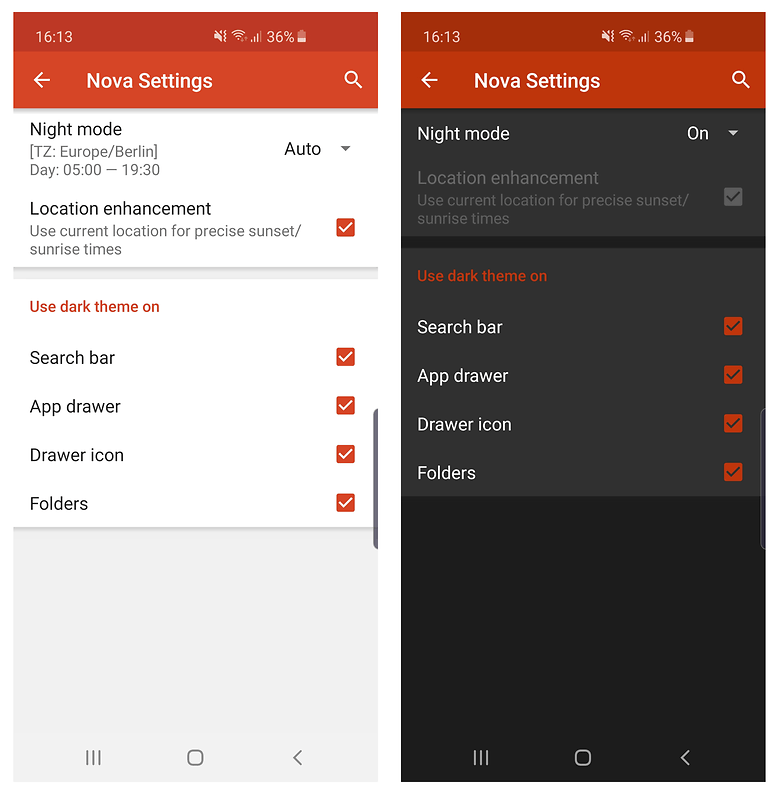
Night mode is sparing on the eyes and although it's not system-wide, it's still great. / © AndroidPIT
11. Experimental features and debugging

This final tip is for the professional Nova Launcher users out there. I don't often make use of this, but it might be helpful to have on hand.


You can access a secret menu, containing experimental features and debugging options, by holding the Volume Down button while in Nova Settings.


Once you've held it down for a second or two, a new option called Labs should be available at the bottom of the menu.


If you find this menu scary and dangerous upon unlocking, long press the Volume Up button to remove it again.Also Read:jihosoft Free iPhone Data Recovery


Sponsor ads:


Gihosoft Free iPhone Data Recovery:https://www.gihosoft.com/iphone-data-recovery-free.html


Gihosoft iPhone Data Recovery Free


Free iPhone Data Recovery Software for Windows/Mac


Recover up to 12+ types of files, including contacts, SMS, photos, WhatsApp, Viber, notes, etc.


Restore lost data from iOS devices directly or from iTunes and iCloud backup


Recover iPhone data lost due to iOS upgrade/jailbreak, accidental deletion, device lost or broken


Support all the latest iPhone, iPad and iPod Touch


Both Free and Pro version.


If you lost data after you updated to a new iPhone, you can always use Gihosoft iPhone Data Recovery to get the data back from the old iPhone or backup.You may also like: iphonerecovery.com


Also Read:Update Android


Also Read:Top 8 Best Alternative Websites to TamilGun in 2019


Also Read:Free Download FRP Bypass APK for Android 2019


Also Read:Best 10 Movie4k Alternative Websites for Movie Streaming 2019


The Labs menu is a sort of Nova Launcher easter egg. / © AndroidPIT
Bonus tip:

3.28.2019

Verizon Launches Free Version of Call Filter Service for Blocking Spam Calls


Verizon, one of the four major cellular carriers in the United States, today announced the launch of a new free version of its Call Filter service that will identify, filter, and block incoming spam phone calls.


Verizon has offered its Call Filter service for some time now, but prior to today, all of the filtering technology required a $2.99 per month fee.


As of today, the spam detection, filtering, and number reporting features of the service are free, but there continues to be a $2.99 per month fee for Caller ID, a personal spam list, a personal block list, a risk meter, and spam lookup functionality.


For Verizon customers, the free call filtering option will provide alerts when an incoming call is likely a spam caller, it will report unsolicited numbers, and, if the option is selected, automatically block incoming robocalls.


All of Verizon's postpaid wireless customers with a compatible device are able to enroll, but the service is not available to prepaid customers.


Verizon says that in addition to making Call Filter free for all customers, it has made advancements towards blocking spoofed phone numbers. STIR/SHAKEN technology will verify that the phone number displayed on Caller ID is the phone number that has actually placed the call.


Verizon says this new call authentication standard will be deployed on the Verizon network in conjunction with other major carriers in the coming months.

"Far too frequently, customers tell me they want relief from the bombardment of bothersome robocalls," said Ronan Dunne, president of Verizon's consumer unit. "I'm confident that our new, free version of Call Filter and STIR/SHAKEN will put a big dent in the problem."

Verizon customers that want to sign up for the Call Filter service can do so through the Verizon website. The Call Filter app for iOS will need to be downloaded to unlock the full functionality.Also Read:jihosoft Free iPhone Data Recovery

Sponsor ads:

Gihosoft Free iPhone Data Recovery:https://www.gihosoft.com/iphone-data-recovery-free.html

Gihosoft iPhone Data Recovery Free

Free iPhone Data Recovery Software for Windows/Mac

Recover up to 12+ types of files, including contacts, SMS, photos, WhatsApp, Viber, notes, etc.

Restore lost data from iOS devices directly or from iTunes and iCloud backup

Recover iPhone data lost due to iOS upgrade/jailbreak, accidental deletion, device lost or broken

Support all the latest iPhone, iPad and iPod Touch

Both Free and Pro version.

If you lost data after you updated to a new iPhone, you can always use Gihosoft iPhone Data Recovery to get the data back from the old iPhone or backup.You may also like: iphonerecovery.com

Also Read:Update Android

Also Read:Top 8 Best Alternative Websites to TamilGun in 2019

Also Read:Free Download FRP Bypass APK for Android 2019

Also Read:Best 10 Movie4k Alternative Websites for Movie Streaming 2019

3.20.2019

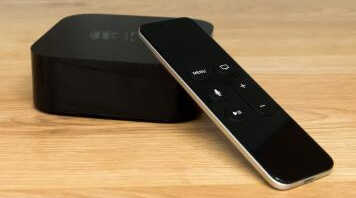
5 Ways to Fix Apple TV Remote Not Working

5 Ways to Fix Apple TV Remote Not Working

Apple TVs are a great source of entertainment for many people and available in various generations.

For the comfort of users, the Apple TVs come with a remote that is durable and reliable. There are two series of Apple TV remote, which help you to control your TV.

However, there are instances that Apple TV remote won’t work due to some issues.


Reasons Why Apple TV Remote Not Working

To help the users with Apple TV remote problem, we have listed a few ways to fix the Apple TV remote not working problem. While before checking the ways, let’s see the reasons for this issue.


The Apple TV remote works on batteries. So, make sure that correct batteries are inserted for the remote to function properly.


It also won’t work if there is something in between the Apple TV and the remote. Remove anything that blocks the line of a path between the remote and Apple TV.


The IR sensors of both Apple TV and the remote should visually contact each other for communication. The users prefer RF signals instead of IR for TV remotes but, maybe we can expect that technology in the upcoming generations of Apple devices.
Top 8 Ways to Fix Apple TV Remote Not Working

“Why won’t my Apple TV remote work?”- This is the most common query on the internet. If you have the same query, you can view the methods given below to fix this issue.


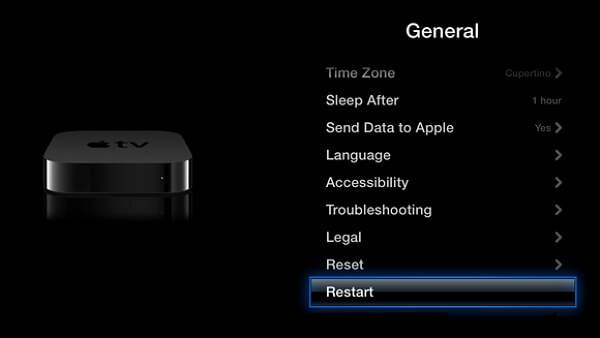
Way 1. Restart Your Apple TV


Way 2. Check the Remote Battery


Way 3. Check Any Obstruction between Apple TV and Remote


Way 4. Pair the Remote with Apple TV again


Way 5. Reset the Remote and Apple TV Connection


Way 6. Fix Apple TV Remote Not Working without Data Loss


Way 7. Use iPhone/iPad as a Remote for Your Apple TV


Way 8. Contact Apple Support with a Damaged Remote
Way 1. Restart Your Apple TV

This is the simplest way to fix this issue. Try switching off the Apple TV and then switch on the TV after a few minutes. Check if you can operate the TV using the remote.


Way 2. Check the Remote Battery

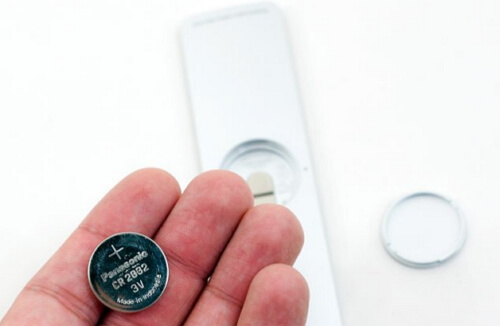
Before going for any repairs and fixes, you need to check the battery of the remote.

The remote might not be working because the batteries are not charged. Charge the remote for a minimum of 30 minutes using the USB cable and then check if it is working.


Way 3. Check Any Obstruction between Apple TV and Remote

The Apple TV remote uses an IR technology for communication with the TV.

So, it needs a direct line of sight if you want to control the TV using the remote. Make sure there is no obstruction between the Apple TV and the remote.


Way 4. Pair the Remote with Apple TV again

Why don’t you pair the remote and check if it is working?

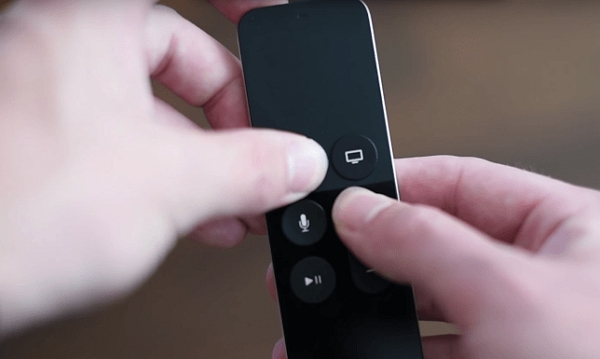
For Siri remote users:


Point your remote towards the Apple TV.


Press and hold the Menu button and Volume Up button of the remote for five seconds.


If prompted, keep the remote on top of your Apple TV and complete pairing.

For Aluminum or white remote users:


Press and hold the Menu button and Right buttons for around six seconds.


Look for a link symbol on your TV screen.


Now press your Apple TV remote. If it flashes 3 times continuously, you have already paired your TV with another remote.


Way 5. Reset the Remote and Apple TV Connection

This issue can also be because of a broken link between both Apple TV and the remote. Reset both to check if the issue gets solved.

Step 1: Unplug the Apple TV and plug it again after a few seconds.

Step 2: Try using the remote again.


For Siri remote users, the remote can be reset by pressing the Menu and Volume buttons. This will reset the remote and put it into pairing mode again.Also Read:jihosoft Free iPhone Data Recovery

Sponsor ads:

Gihosoft Free iPhone Data Recovery:https://www.gihosoft.com/iphone-data-recovery-free.html

Gihosoft iPhone Data Recovery Free

Free iPhone Data Recovery Software for Windows/Mac

Recover up to 12+ types of files, including contacts, SMS, photos, WhatsApp, Viber, notes, etc.

Restore lost data from iOS devices directly or from iTunes and iCloud backup

Recover iPhone data lost due to iOS upgrade/jailbreak, accidental deletion, device lost or broken

Support all the latest iPhone, iPad and iPod Touch

Both Free and Pro version.

If you lost data after you updated to a new iPhone, you can always use Gihosoft iPhone Data Recovery to get the data back from the old iPhone or backup.You may also like: iphonerecovery.com

3.15.2019

2019 iPhone Triple Camera Setup to Have Square Camera Layout Similar to Huawei Mate 20 Pro

2019 iPhone Triple Camera Setup to Have Square Camera Layout Similar to Huawei Mate 20 Pro


Citing information received from Chinese suppliers, Macoatakara claims that iPhone 11 will feature a triple-camera setup at the rear along with an LED flash in a square-ish formation. This would make the rear camera design of the 2019 iPhones similar to the Huawei Mate 20 Pro which was launched last after in October.

The report also claims that both 2019 iPhone XS and iPhone XS Max successor might feature a triple-camera setup, though Apple could use storage as a potential differentiator. This means that Apple could keep the triple-camera setup for the higher storage variants of the iPhone XS while offering it on all variants of the iPhone XS Max.

Apple has usually used the camera system to differentiate between the Plus/Max iPhone and the regular iPhone. Previous reports surrounding the iPhone 11 have pointed to only the Max version coming with a triple camera system. The company did use storage to differentiate between devices like keeping 6GB RAM exclusive to the 1TB variant of the 2018 iPad Pro and offering the iPhone 7 Plus in a Jet Black color in only 128GB and 256GB SKUs.

The triple-camera setup on the iPhone 11 will see Apple offer an ultra-wide angle shooter in addition to the telephoto and a wide-angle shooter it already offers on the iPhone XSand iPhone XS Max. LG was the first to start this trend a few years ago, though Huawei’s Mate 20 Pro from last year and the Galaxy S10 series from this year are the devices that have made people sit up and take notice of how useful an ultra-wide angle shooter is.

Other rumors point to the iPhone 11 coming with reverse wireless charging, bigger batteries, A13 Bionic chipset, frosted rear glass, and more.
Our Take

Apple simply cannot afford to keep the triple-camera setup exclusive to the Max variant of the iPhone XI this year. The smartphone market has changed a lot and consumers will not be interested in paying a massive premium just to enjoy the triple camera especially when they can get the same camera setup on other cheaper flagship devices.

Will you consider buying the iPhone XI Max over the iPhone XI if the triple camera system is exclusive to the former?

[Via Macotakara]

Also Read:jihosoft Free iPhone Data Recovery

Sponsor ads:

Gihosoft Free iPhone Data Recovery:https://www.gihosoft.com/iphone-data-recovery-free.html

Gihosoft iPhone Data Recovery Free

Free iPhone Data Recovery Software for Windows/Mac

Recover up to 12+ types of files, including contacts, SMS, photos, WhatsApp, Viber, notes, etc.

Restore lost data from iOS devices directly or from iTunes and iCloud backup

Recover iPhone data lost due to iOS upgrade/jailbreak, accidental deletion, device lost or broken

Support all the latest iPhone, iPad and iPod Touch

Both Free and Pro version.

If you lost data after you updated to a new iPhone, you can always use Gihosoft iPhone Data Recovery to get the data back from the old iPhone or backup.You may also like: iphonerecovery.com

3.14.2019

Top 3 Ways to Fix iPad Ghost Typing 2019


Top 3 Ways to Fix iPad Ghost Typing

If you encounter the problem that your iPad is typing on its own, keep reading then.
Way 1. Clean the Device Screen

This issue might occur if there is something present on the screen and it accidentally got registered on it because the iPad display recognizes only human hands when they touch.

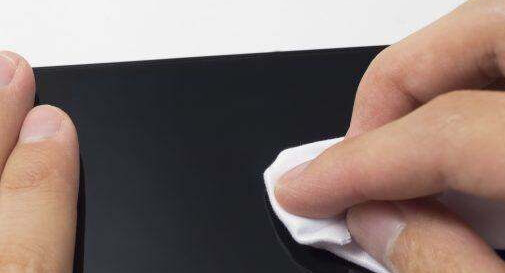
So, clean the iPad screen using a clean microfiber cloth. Don’t spray anything on the screen. Dampen the cloth and rub it over the display to remove unwanted prints on the screen.


Way 2. Restart Your iPad

Many common iOS issues get solved on restarting the device.

Step 1: Just press and hold the Power or Top button until you see the slider.

Step 2: Slide right to turn off your device. After a few minutes, turn on your iPad and check whether the problem is solved or not.


Way 3. Update iPad to Latest Version

The developers release new iOS versions for fixing bugs and software issues. So, update and check whether the iPad ghost typing issue gets fixed.

Step 1: Open Settings -> General -> Software Update.

Step 2: The device will start checking for new updates.

Step 3: You can download and install the update if available.Also Read:Whatsapp Text Tricks: Type Bold, Italics & Strikethrough WhatsApp Texts on iPhone
Also Read:Top 5 Software to Download YouTube 60fps Videos on PC & Mac

Also Read:Download the Latest Version of Samsung Kies for PC and Mac OS


Way 4. Fix iPad Ghost Typing without Data Loss

3.13.2019

Apple Purchases Machine Learning Startup Laserlike

Apple Purchases Machine Learning Startup Laserlike

Apple last year acquired Laserlike, a machine learning startup located in Silicon Valley, reports The Information. Apple's purchase of the four-year-old company was confirmed by an Apple spokesperson with a standard acquisition statement: "Apple buys smaller technology companies from time to time and we generally do not discuss our purpose or plans."


Laserlike's website says that its core mission is to deliver "high quality information and diverse perspectives on any topic from the entire web to you."


The company built a search app that used discovery and personalization machine learning techniques to build a Laserlike app described as an "interest search engine" that provided news, web, video, and local content relevant to each user. The Laserlike app is no longer available following the acquisition, but the company's website continues to cover what it was focused on:

We live in a world of information abundance, where the main problem is sifting through the noise and discovering the stuff you actually care about. For instance, if you care about knowing when the next SpaceX livestream launch is because you like to watch it with your kids, or if the car you bought two years ago has had a recall, or if a company you're interested in announces it's opening a new office where you live, or if there's a music festival coming to your town, you don't know when to look for these things, and there's no product that informs you automatically.


This is one of the things we want to fix on the Internet. Laserlike's core mission is to deliver high quality information and diverse perspectives on any topic from the entire web. We are passionate about helping people follow their interests and engage with new perspectives.

The Information suggests that Apple will use the Laserlike acquisition to strengthen its artificial intelligence efforts, including Siri. The Laserlike team has joined the Apple AI group led by new Apple AI chief John Giannandrea, who came to Apple from Google last year.


Giannandrea has been tasked with improving Apple's machine learning initiatives and bolstering Siri, the company's voice assistant. Laserlike's technology could potentially allow Siri to learn more about Apple users to provide more tailored, personalized content.Also Read:Top 6 Anonymous Messaging Apps for iPhone: What You Need to Know?

Also Read:How to Download any Video from a URL
Also Read:6 Best Contact Apps for iPhone to Manage Your Address Book in 2019


Also Read:Top 5 Best File Transfer Apps for iPhone Users in 2019

3.12.2019

Sprint Calls out AT&T for Misleading 5GE Indicator in Full-Page NYT Ad


Sprint Calls out AT&T for Misleading 5GE Indicator in Full-Page NYT Ad


Sprint has taken out a full-page open letter ad in the Sunday’s edition of The New York Times calling out AT&T for its misleading “5GE” network indicator. With the iOS 12.2 beta update, iPhones on AT&T network have started showing the ‘5GE’ indicatorinstead of LTE. Some Galaxy phones will also receive a software update to make this change.

Despite the ‘5GE’ indicator, your iPhone will not have magically gained 5G capabilities with a software update. Instead, as per AT&T, the ‘5GE’ logo represents that you are in AT&T’s 5G Evolution market where it is able to offer higher and more stable LTE speeds. Yep, there’s no 5G here. AT&T is simply getting on the 5G bandwagon and purely misleading customers with this move.

Right now, this change is a part of iOS 12.2 beta but once the release goes public, more users will get confused seeing the 5GE logo in the status bar of their iPhone. No wonder then that Sprint has sued AT&T for this misleading marketing tactics. In its full-page NYT ad, Sprint says that while it is working hard on bringing 5G to its customers, AT&T is working hard on misleading its customers.

While Sprint is working hard to deliver mobile 5G and the first 5G smartphone in the U.S., AT&T is hard at work trying to convince you that they already won the race to 5G with something they call “5G Evolution.” That is simply untrue.

Don’t be fooled. 5G Evolution isn’t new or true 5G. It is fake 5G.

They would love for you to believe they are different … better. The truth is AT&T is simply offering customers a nationwide 4G LTE network just like Sprint and all the other major wireless carriers. It’s not 5G.

We filed a lawsuit against AT&T demanding that they immediately end their false and deceptive marketing campaign. AT&T seems to be delighted by the depth and breadth of their deception. AT&T admitted that the company’s 5G E advertising is strictly a narrative to outline how they want the world to work – not a reflection of today’s reality.

AT&T is working on bringing 5G to at least 12 U.S. cities this year but there are no smartphones in the market right now that can connect to it. So instead of highlighting that, AT&T decided to use deceptive marketing to fool its customers into thinking that they are already on its 5G network.

Sprint has already sued AT&T over this misleading campaign.
Our Take

While I can understand Android OEMs bending to the requirements of AT&T and allowing it to display a fake ‘5G’ indicator on their devices, I am shocked at how Apple could allow the carrier to do the same on iPhones. Apple has never allowed this before so it is definitely a strange move. It is possible that with the final release of iOS 12.2, this scenario changes and Apple removes the ‘5GE’ logo with something that is not so blatantly misleading.

Do you think AT&T is doing the right thing here by showing its Gigabit LTE network as ‘5GE’?

[Via Sprint]

Also Read:jihosoft Free iPhone Data Recovery

Sponsor ads:

Gihosoft Free iPhone Data Recovery:https://www.gihosoft.com/iphone-data-recovery-free.html

Gihosoft iPhone Data Recovery Free

Free iPhone Data Recovery Software for Windows/Mac

Recover up to 12+ types of files, including contacts, SMS, photos, WhatsApp, Viber, notes, etc.

Restore lost data from iOS devices directly or from iTunes and iCloud backup

Recover iPhone data lost due to iOS upgrade/jailbreak, accidental deletion, device lost or broken

Support all the latest iPhone, iPad and iPod Touch

Both Free and Pro version.

If you lost data after you updated to a new iPhone, you can always use Gihosoft iPhone Data Recovery to get the data back from the old iPhone or backup.You may also like: iphonerecovery.com

If you use android phones, please choose Gihosoft Android Data Recovery.

With Gihosoft Android Data Recovery, no longer afraid of data loss!

Must read:Youtube video downloader for pc

Gihosoft RePicvid Free Photo Recovery Software provides a free photo recovery software for windows to help users recover the deleted or lost photo for free.

Jihosoft Android Data Recovery: the best Android Data Recovery software for Windows and Mac to recover deleted contacts, messages, photos, videos, WhatsApp and etc from Android devices.Tips:How to transfer messages from iPhone to iPhone


Jihosoft File Recovery:Recover deleted, Lost, formatted, or corrupted files from PC, flash drive and memory card easily & safely