10.17.2019

Major Security Vulnerability Discovered in Samsung Galaxy S10’s Under-Display Fingerprint Scanner


A major security vulnerability has been discovered on the Galaxy S10 and Note 10 series that allows one to bypass the fingerprint scanner even if their fingerprint is not registered with the device. This happens when certain gel-based screen protectors are applied on the Galaxy S10’s display.

The Galaxy S10 and Note 10 series feature an ultrasonic in-display fingerprint scanner that is very different from the optical in-display fingerprint scanner found on the likes of the OnePlus 7 Pro and Huawei P30 Pro. One of the limitations of an ultrasonic fingerprint scanner is that it does not work with third-party tempered screen protectors. This is the reason why Samsung sells these phones with a screen protector pre-applied.Also Read:Audio Editing software

Also Read:ListentoYouTube Alternatives


However, most users do end up replacing the default screen protector and as one user found out, using a cheap gel-based screen protector is actually not good from a security viewpoint.

A Galaxy S10 owner in the UK got a cheap £2.70 screen protector from eBay for her Galaxy S10 and later discovered that her husband was able to access her phone by scanning his thumbs even though his fingerprint was not registered. This happens because gel-based screen protectors leave a small gap between the display and the scanner which ends up interfering with the scanning process.Also Read:King Root and Its Best Alternative 2019

Also Read:Fix iPhone Keeps Disconnecting from WiFi After iOS Upgrade


Samsung has already acknowledged the issue and while it has put the blame on the cheap screen protector, it promises to resolve the issue with a future software update. While the issue occurred with the Galaxy S10, it is also applicable for the Galaxy Note 10 since it also features the same ultrasonic fingerprint scanner.

When the Galaxy S10 was first launched, Samsung highlighted its ultrasonic in-display fingerprint scanner as being more secure than the competition. However, the fingerprint scanner was widely panned for being slow and as this incident shows, it does not really seem to offer much in terms of security as well.

Photoshop CC for iPad Still Releasing in 2019 Albeit Without Many Key Features


Last year, Adobe had announced that it was bringing full-fledged Photoshop CC to the iPad in 2019. Since then, the company has been mum about the app, though it did start accepting beta applications for it in May this year. A new report confirms that Adobe is on track to release Photoshop CC for the iPad in 2019.

To meet the deadline though, the initial version of the app will lack a number of key features found on its desktop counterpart. Adobe will officially provide an update about Photoshop CC for the iPad at its MAX conference in November this year.

Many users who have been beta testing the iPad app have been unhappy with the number of key features it lacks especially with filters, pen, color spaces, RAW editing, smart objects, and layer styles.

“Feature-wise, it feels like a beefed-up cloud-based version of their existing iPad apps and not ‘real Photoshop’ as advertised,” said someone beta-testing the software, who declined to be named talking about an unreleased app. “I understand it is based on desktop Photoshop code, but it doesn’t feel like it right now.” Other testers have called the app “rudimentary” and said, in its current state, it is inferior to other apps like Procreate and Affinity on the iPad.

Scott Belsky, chief product officer of Adobe’s Creative Cloud division, said that the company is working on a lot of features with Apple and they will be “coming in hot” before launch. He also said that it was impossible to launch Photoshop CC on the iPad with all the features found on the desktop app which has accumulated over 25 years.

“Launching every single feature that was accumulated over 25 years on the iPad on day one would not best serve our customers and the needs they have.” Usage on a desktop and an iPad isn’t “apples to apples,” he said, and Adobe “will definitely expand the capabilities” of Photoshop on iPad over time.Also Read:Download video from JW Player

Also Read:Fix Screenshot on Mac


Photoshop CC for iPad will allow users to open and edit native PSD files without destroying the original file. It will also feature cloud syncing with Adobe’s creative cloud meaning all changes to a file will be synced to the cloud and all devices and machines linked to that account. This will allow users to start a project on their iPad and then seamlessly continue editing it on their laptop or PC.

[Via Bloomberg]

10.03.2019

iPhone Black Screen of Death? Here Is the Real Fix

iPhone black screen is a common problem, but it can be a big problem since you can't access the iPhone in any way. Sometimes, even when someone calls, you can hear the phone ring but the screen remains black and you can't answer the phone. Sometimes, your iPhone just gets stuck on a black screen after the iOS firmware update. This problem also happens to the users who are updating iPhone to iOS 13/12. This article explains the causes of the iPhone black screen and offers three solutions to fix this all too common problem.

Causes of iPhone Black Screen
There are lots of reasons why your iPhone's screen suddenly goes black. One possible reason could be hardware damage due to improper screen replacement, bad screens, dropping the device or water damage. Sometimes the problem could be as a result of a software issue which can be caused by firmware modifications that didn't quite go as planned, system crash, jailbreaking and so on. The following are 3 of the most effective ways to fix the problem and you can try them even when your device is running iOS 13/12.
2.1. Hard Reset Your iPhone to Fix iPhone Black Screen of Death

When your iPhone gets a black screen and won't turn on, the first thing to do is to perform a hard reset. See the following steps.

Step 1. Locate the Home button and the Sleep/Wake buttons on your iPhone.

Step 2. Press and hold the Home button and Sleep/Wake button at the same time until the Apple logo appears.

Step 3. After that release, the buttons and your iPhone will restart.

If you are using iPhone 7, just hold the Volume Down button instead of the Home button.


If you are using iPhone 8 or later, quick press Volume Up button and then Volume Down button. Hold the Sleep/Wake button until you see the Apple logo.Also Read:10 URL to MP3 Converter

Also Read:Download Tumblr Videos and Audios in 2019


If hard resets fail, then opt to restore your iPhone using iTunes.


2.2. Restore iPhone to Factory Settings for iPhone Black Screen Fix

Another method to fix iPhone black screen of death is using iTunes. Here is how to do it.

Step 1. Download and open the latest version of iTunes on your computer.

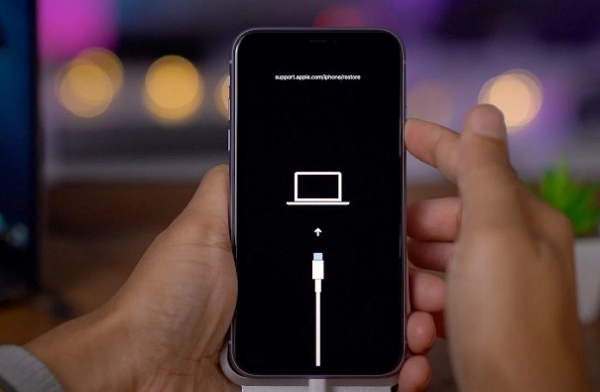
Step 2. Connect your iPhone to the computer with a USB cable. If iTunes detects your iPhone, and offer a restore option to you, you can just click Restore button to wipe your iPhone. If iTunes cannot recognize your iPhone stuck on a black screen, you need to put your iPhone in Recovery mode. Check this guide to know how to enter iPhone Recovery mode.

Step 3. Once the iPhone is detected by iTunes, you will be offered with the option of Restore iPhone. Click "Restore" to confirm the action.


Step 4. After that, iTunes will begin erasing your iPhone. It will then install the latest iOS software, currently iOS 12 on your iPhone.

Step 5. Once it finishes, your iPhone will restart. Proceed and set it up as a new device.

This method, however, results in data loss. For a better and safer solution to this problem, this solution is not recommended.

If you don't care about the data on your device, then go ahead.
3. Put iPhone/iPad in Recovery Mode without Home Button

The Home button on your iPhone is an important one. Until the release of the iPhone 7, it seems it is very little you can do on the iPhone without involving the home button. Therefore, we all agree that the home button is important. However, what happens when you drop the device and the home button gets damaged and cracked? What should you do when you can't use the home button and you need to put the device in recovery mode? Every method to put your device in recovery mode requires holding down the home button. Is there a way to do it without a home button? In the part, we will show you how to make it. This way you can fix whatever issue your device is facing even if the home button is not working.


Free Tool to Put Your Device in Recovery Mode without Home Button

9.26.2019

iOS 13.1 Restricts Fast Charging to 5W for Multiple Wireless Charger


Wireless charging capability debuted with iPhone 8, iPhone 8 Plus and iPhone X in 2017. As expected the latest iPhones support wireless charging. Chargerlabs has conducted some tests to gauge the performance of wireless charging on the iPhone 11 series. Tests have also revealed that fast charging support to multiple wireless chargers has been removed on iOS 13.1.

The tests were conducted on the iPhone 11 series and multiple wireless chargers of different brands were used. As part of the tests, it was found out that the new iPhone 11 series is capable of holding 10W wireless charging for almost 1 hour and 40 minutes. The charging output immediately reached 10W once the phone was switched on. In any case, 7.5W was the power received on the phone’s end. All the tests were conducted on iPhone 11 series running iOS 13.


In the second phase of wireless charging tests, things started looking bleak for the new iPhones. This time around the test was conducted on iPhone 11 series running iOS 13.1. The output power dropped to 6-7w during the test while the power received at the phone’s end dropped drastically to 5W. In other words, the wireless charging speed dropped by nearly 70% on iOS 13.1 as opposed to iOS 13.Also Read:10 eBook reader apps for Android! (Updated 2019)


Furthermore, the wireless charging tests also revealed that multiple wireless charging pads which earlier supported 7.5W could now charge the iPhone 11 at 5W. However, charging speed didn’t drop in wireless pads like Belkin, Anker, Native Union, Logitech. It is worth noting that all the wireless charging pads are available on Apple Store. We are not sure if Apple is throttling the charging speed on some wireless pads.

Apparently Apple has baked in a new feature on iOS 13.1 which allows 7.5W charging only for pads with fixed-frequency regulation while the rest will be restricted to 5W charging.

[via Chargerlabs]

9.25.2019

Solutions to Fix iPhone 11 Stuck on Apple Logo after iOS 13 Update


Solutions to Fix iPhone 11 Stuck on Apple Logo after iOS 13 Update

Here are 4 ways on how fix iPhone 11 stuck on Apple Logo after iOS 13 update. Although they are not 100% workable, you can still give them a free try.
Way 1: Force restart the Device

The first quick option to try and fix the iPhone that is stuck on the Apple logo after updating to iOS 13 is to force restart your device. With force restart, it is not a guarantee that it will fix the issue but it can help. Moreover, you will not lose any data. Here is how to force restart iPhone 11 when stuck on Apple Logo.

Step 1. Take your iPhone 11, press Volume Up button and quickly release it.


Step 2. Next, press Volume Down button and quickly release it.

Step 3. After that, press and hold the side button until you see the Apple logo is when you can release the buttons. Your iPhone 11 should then start normally.
Way 2: Restore iPhone in Recovery Mode

If force rebooting doesn't fix your iPhone 11 stuck on Apple logo issue, try to your iPhone into recovery mode. Using recovery mode will work but it is sure to lose your iPhone data. With this option, you need to ensure that you do a back of your iPhone data and update your iTunes application on your computer. From there you can now follow these steps on how to restore iPhone 11 stuck in Apple logo in Recovery Mode.

Step 1. Open iTunes on your computer and link the iPhone to the computer using a USB cable.

Step 2. Next, press volume up button and quickly release it. Also, press the volume down button and quickly release it.Also Read:z shadow hack

Also Read:YoutubeMultiDownloader Alternatives & Similar Sites


Step 3. From there, press and hold the Side button until you see the connect to computer screen on your iPhone 11.


Step 3. Now that your iPhone in recovery mode, turn to iTunes screen and click on "Restore" button.


Upon following the instruction displayed on the screen you should eventually be able to fix your iPhone 11 stuck on Apple logo.
Way 3: Restore iPhone In DFU Mode

The last method that you can use to restore your iPhone 11 stuck on Apple logo is restoring it in DFU mode. This method is not recommended since you will lose your data permanently. You can only use it if you have tried all the other methods and they have not worked. Plug your iPhone X or iPhone 8 into your Mac or PC. Follow these steps:

Step 1. Open iTunes and connect your iPhone 11 to the computer.

Step 2. Next, press Volume Up button and release it immediately.

Step 3. After that, press Volume Down button and release it immediately.

Step 4. Next, hold the Power/Slide button until the screen disappears

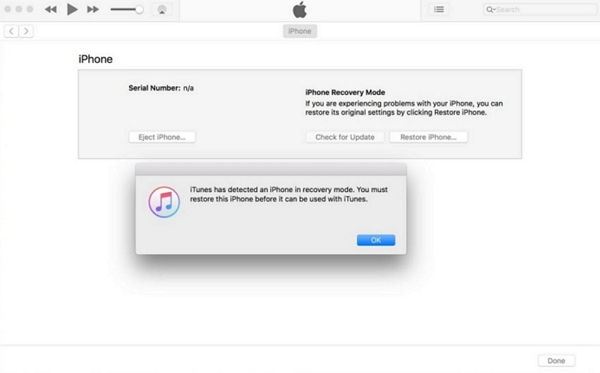
Step 5. Now, press and hold the Volume Down button and the Side button simultaneously for about 5 seconds before releasing the Side button and continue to hold the Volume Down button. When you see the "iTunes has detected an iPhone in recovery mode". Appear you can now release the button.

Step 6. Finally, click the "OK" button on the iTunes popup window and then click "Restore" to restore your iPhone 11 in DFU mode.


Part 4: If the Problem Is Caused by Hardware Problems?

If you have tried all the four methods and your iPhone 11 is not fixed, then it could be a hardware problem. Therefore, go to the Apple store and let them diagnose the problem. If your warrant has expired the lookup for a professional technician who can help you out.
Conclusion:

In a nutshell, restoring your iPhone 11 that is stuck on Apple logo is easy. You can try to force restart before deploying iMyFone Fixppo option. With the DFU mode and recovery mode, you will fix your iPhone but lose data hence it is worth using iMyFone Fixppo option.

9.17.2019

Google’s Key Moments Makes It Easier to Search for Content within Videos

Thanks to Google it is easy to search for stuff on the Internet. The search giant has taken the video search a step further by adding a new feature. Google has detailed how it will display videos in search results. Starting now, Google will also highlight the relevant part of the video in the search engine and calls it “Key Moments.”
The new feature is based on timestamps added by the video creator. It is pretty easy to skim through the text and find out the relevant parts. However, it becomes fairly difficult to do so in longer videos. Furthermore, the task only becomes tougher in regions will poor internet connectivity. The new search feature lets you search for content within a video.
Videos aren’t skimmable like text, meaning it can be easy to overlook video content altogether. Now, just like we’ve worked to make other types of information more easily accessible, we’re developing new ways to understand and organize video content in Search to make it more useful for you.- Prashant Baheti, Product Manager, Search.
Starting now Google’s search results will feature key moments in the videos. The feature is particularly useful in searching for specific things within a long how-to video or speeches or a documentary. Search will add a link to the key moments within the video and this will help you understand whether or not the video has the content you are searching for. The links to Key moments will appear only for Search in English and for YouTube videos wherein creators have added timestamps in the description.
Content creators need to markup their videos for specific content. Google is apparently implementing the feature for other video publishers like NDTV and CBS Sports. Maybe in the future, Google will use machine learning to automatically create timestamps for videos.Also Read:15 Exhentai proxy sites

[via Google]

8.14.2019

Recalled MacBook Pros with Faulty Batteries Banned from Flights by FAA


A couple of months ago, Apple announced a recall of selected MacBook Pro variants due to battery safety concerns. The U.S. Federal Aviation Administration has now banned such MacBook Pro models on flights due to safety concerns. It has also informed all major flight operators in the US about the recall.

It has also reminded airlines of the 2016 safety instructions which made it clear that goods with recalled batteries cannot be carried by passengers in flight as carry-on item or as checked-in luggage. The European Union Aviation Safety Agency has already issued a warning about the recalled MacBooks to all airlines in the EU earlier this month.

In a statement, the U.S. Federal Aviation Administration said it was “aware of the recalled batteries that are used in some Apple MacBook Pro laptops” and stated that it alerted major U.S. airlines about the recall.

Apple has recalled the 15-inch MacBook Pro sold between September 2015 and February 2017 due to concerns with its battery. As revealed by the CPSC, the recall affects around 432,000 MacBook Pro units in the United States and 26,000 units in Canada. Apple had received 26 reports about the affected model’s battery overheating, which included five reports of minor burns, one of smoke inhalation, and 17 of damage to personal property.

When it announced the recall, Apple recommended owners of affected MacBook Pro models to immediately contact their nearest service center to get the battery replaced for free. If you have not already, make sure to check that your 15-inch MacBook Pro’s battery is not affected by the recall from this page.If you lost data after you updated to a new iPhone, you can always use Gihosoft iPhone Data Recovery to get the data back from the old iPhone or backup.You may also like: iphonerecovery.com


[Via Bloomberg]