12.10.2018

How to use the ECG App on Apple Watch 2019


How to install the latest iOS and watchOS updates

To install the newest software for iPhone and Apple Watch follow these steps:
iOS


Tap the Settings app on your iPhone.


Select General > Software Update.


Follow the onscreen prompts to download and install the newest software.
watchOS


Tap the Watch app on iPhone.


Choose General > Software Update.


Follow the onscreen prompts.

Note: Developers who want to use the ECG app must uninstall Apple developer profiles from both the iPhone and Apple Watch to download the updates. Once you remove the profiles, reboot each device and then follow the directions to download the updates.
Setting Up the ECG App

Before starting the ECG app for the first time, you must set it up through the Health app on iPhone.


Tap the Health app on iPhone.


You should see a pop-up introducing the new feature. Tap Set Up ECG App.


You’ll need to add your birthdate on the next screen. Once you do, tap Continue.


On the next few screens, you’ll learn more about the ECG app. Tap Continue on each screen to move through the process.


Next, you’ll see a message indicating that you can now take an ECG reading on your Apple Watch. Tap Skip if you’d rather not at this time.

At this point in the process, attention moves to the Apple Watch. Once you take your first ECG reading on Apple Watch, come back to the Health app on iPhone to confirm the test.


Using the ECG App on Apple Watch

To take an ECG recording on your Apple Watch:


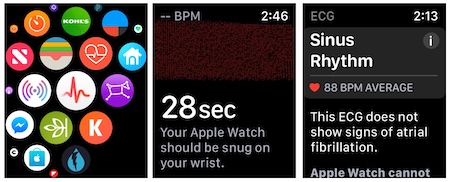
Push the Digital Crown on your wearable device.


Find and tap the ECG app.


Hold your finger on the Digital Crown for 30 seconds.


After seeing the test results, scroll down and tap Done.

During this time, you’ll see a clock counting down on your Apple Watch face. If you remove your finger from the Digital Crown at any time during this process, you’ll need to begin it again to complete the process.


Once completing the test, you’ll see one of three readings on your watch face:


AFib: an irregular heartbeat


Sinus Rhythm: a normal heartbeat


Inconclusive

To use the ECG again, repeat steps 1 through 4 above.

Sponsor ads:

Gihosoft Free iPhone Data Recovery:https://www.gihosoft.com/iphone-data-recovery-free.html

Gihosoft iPhone Data Recovery Free

Free iPhone Data Recovery Software for Windows/Mac

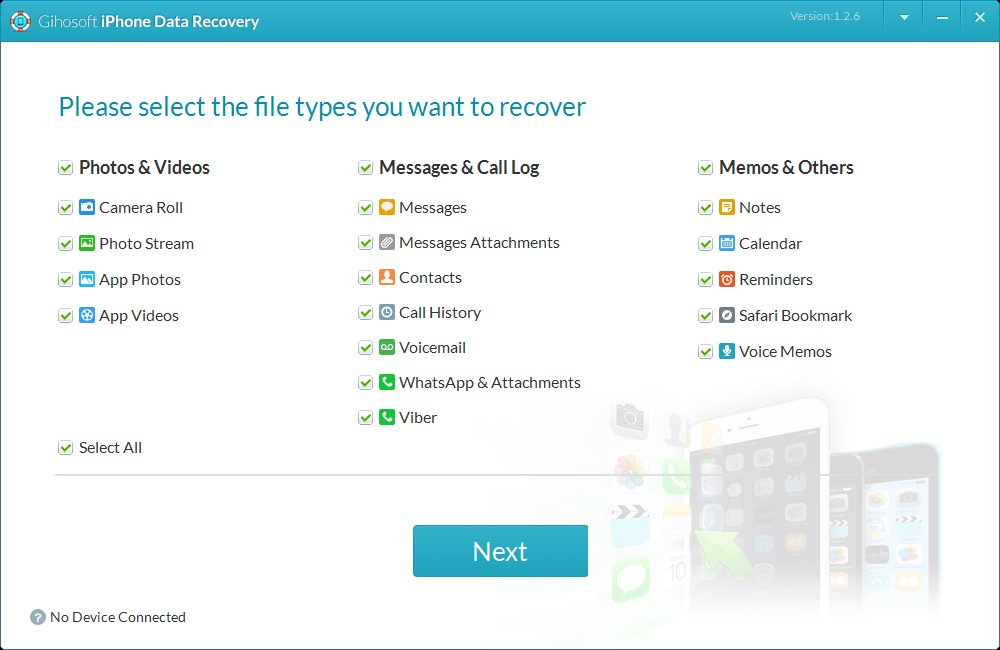
Recover up to 12+ types of files, including contacts, SMS, photos, WhatsApp, Viber, notes, etc.

Restore lost data from iOS devices directly or from iTunes and iCloud backup

Recover iPhone data lost due to iOS upgrade/jailbreak, accidental deletion, device lost or broken

Support all the latest iPhone, iPad and iPod Touch

Both Free and Pro version.

If you lost data after you updated to a new iPhone, you can always use Gihosoft iPhone Data Recovery to get the data back from the old iPhone or backup.You may also like: iphonerecovery.com

If you use android phones, please choose Gihosoft Android Data Recovery.

With Gihosoft Android Data Recovery, no longer afraid of data loss!

jihosoft Free iPhone Data Recovery


Worth reading:Best youtube downloader online download youtube 1080p

8.14.2018

7 Best Personal Assistant Apps for Android with voice commands 2019

The Craze for Personal Assistant Apps for Android users has increased after the official launch of the Siri and Cortana in past years.

If you have a sweet voice assistant in your Android mobile, it becomes easy for you to just cross things off from your to-do list. It seems to be a reminder, an alarm or a calculator.

Gym workout. Preparing reports. Sending emails. Creating letters. Latest News. Book Movie Tickets. Or just writing a new blog post. It is hard to remember each of the tasks, which should be completed on time. But when you have a virtual assistant in your Android smartphone, things become pretty easy and accessible.

Using a voice assistant app, you can find nearby restaurants or ATMs, keep track of the important stuff, and wish your Girlfriend “Happy Birthday” on time

See Also: Best Android Data Recovery App without Rooting


In this article, you are going to find some of the best personal android assistant apps.

Unfortunately, there is no Siri for Android, but luckily you have a Cortana. Does it make any sense? I don’t believe. All the Assistant apps including Google Now works one as a same.

7 Best Personal Assistant Apps for Android with voice commands


Google Allo.


Cortana.


AIVC (Alice).


Haptik Personal Assistant.


Jarvis (My Personal Assistant).


Indigo Virtual Assistant.


HOUND Voice Search and Assistant.

1. Google Allo
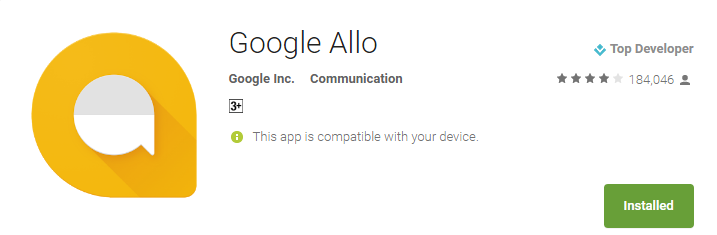


Google Allo is primarily a messaging app which can be used as an Android virtual assistant. You can also include Google into your personal/group conversation by just using @Google in it.

Main Features:


Smart Reply, to automatically suggest nice responses to text and photos.


Describe the images you send, by doodling on them or adding text.


Talk to your Google assistant by including it in the convo.


Easily find nearby places, hotels, restaurants.


Question Answers using Google search.


Setup a reminder, schedule messages and lot more.

Download this App!


2. Cortana


Cortana is another personal assistant which will help you keep track of the important stuff wherever you are, across your devices. It was first introduced in Microsoft Windows 10 Operating System. Now it is also available for Android mobiles.

Main Features:


Link your phone with your Windows PC and manage the call records from it.


Detects traffic areas and hence helps you to go to your office at the right time.


Schedule your important dates, reminders, etc.


Fast answer or info gathering (Voice Assistant).

Download this App!


3. AIVC (Alice)


Alice is another great voice assistant app for Android. With Alice, Android users get a helpful assistant at hand, which understands more than just commands. Alice knows a lot and is constantly learning new things.

Main Features:


Accept voice orders, to start specific apps.


Replies to the commands such as weather, time, scores, etc.


Define your own commands with Alice.


Controls basic mobile functions such as SMS, Calls, etc.


Calculates complex math problems in just a few seconds.


Create a to-do list, reminders, schedules, etc.

Download this App!


4. Haptik Personal Assistant


Haptik is basically made by and for Indian users to hire a personal assistant without paying a single penny. Using Haptik personal assistant app is the easiest way to get things done. Currently, Haptik is a chat based Android app.

Main Features:


Set Reminders for Wake Up Call, To-Do List, etc.


Book flight, train tickets and cabs and hotels.


Recharge and pay bills.


Schedule Pick up and Drop Services.


Order food.

Download this App!


5. Jarvis – My Personal Assistant


Jarvis is an extraordinary and professional Android personal assistant app which also operates on wearable Android devices. This app is unique and also supports voice commands.

Main Features:


Notifications about the weather, news, battery status & power levels.


Various themes to match your parent mobile theme.


Directly call or send text messages to your contacts using simple voice commands.


Set quick wake up alarms, reminders and schedules.


Play music by its name.

Download this App!


6. Indigo Virtual Assistant


Indigo is a free and easy to use a virtual assistant app for Android users. Talking to Indigo feels just like you are talking to a human being. She accepts all the voice commands from starting a particular app to showing the latest news across the globe.

Main Features:


Keep you updated with the news – from sports to technology.


Control your music player using voice commands.


Connect with social media sites like Facebook and Twitter.


Easily get the weather forecasts for any location.


Search with Google, Bing and Yahoo for the answer to any question.


Find the best location for any delightful occasions.

Download this App!


7. HOUND Voice Search & Assistant


Hound is a free voice search and virtual assistant app for Android smartphones. The voice search of Hound is rated 5 stars and enrolled to be the best voice search app for android.

Main Features:


Make phone calls and send text messages using voice commands.


Speak what you’re looking for rather than typing (Voice search).


Get instant weather report for today.


Ask for a destination and travel there seamlessly.

Download this App!


More Useful Apps for Your Android Phone:


Top 10 Best Screen Recording Apps for Android Not to be Missed

Top 10 Ad Blocker Apps for Android – Stop Pop-Ups & Block Ads Easily

Android Music Players: 10 Best Free Audio Players for Android in 2018

Top 10 Best Free Android Photo Editors in 2018

Top 8 Methods to Run Two WhatsApp Accounts on One Phone Easily


Well, these are some of the best personal assistant apps for Android OS. If you liked this post, don’t forget to share it with your friends on Facebook and Twitter. Share your suggestions in the comment box.You may also like:

iPhone backup unlocker:Recover iTunes Backup Password.

iPhone backup extractor :The best iPhone Backup Extractor software to extract photos, text messages, contacts, voice memos, note, WhatsApp, Viber and etc from iPhone/iPad backup

Gihosoft Free iPhone Data Recovery is a professional iPhone Data Recovery software to get back all your lost text message, photo, video, call history, note, contact and more from iPhone/iPad/iPod Touch. It offers a full solution to recover your lost data in different tough situations. Besides recovering data directly from iPhone, iPad and iPod touch, it also allows you to recover data from iCloud and iTunes backup files.

6.16.2018

iCloud Contacts Not Syncing with Outlook/Mac/iPhone? How to Fix it

iCloud Contacts Not Syncing with Outlook/Mac/iPhone? How to Fix it
Part 1. iCloud Contacts Not Syncing on Mac


If your systems are correctly configured but you still can’t get the contacts to sync on your Mac, these two solutions should help you get the contacts on your iPhone to also appear on the Mac.
Keep the Contacts Up to Date on iCloud


Making sure that all the contacts you have on iCloud are up to date is one way to ensure they sync with the Mac. Follow these simple steps to do that;
You may also like:
If you lost videos from iOS Camerall Roll which are nowhere to download again, you can use Gihosoft iPhone Data Recovery to get back deleted videos from iOS device including iPhone, iPad and iPod Touch.Please check jihosoft iphone data recovery

Step 1: Log in to iCloud.com and then click on “Contacts.”


Step 2: Make sure that all the contacts in iCloud are up to date before exporting them to vCard.


Step 3: Now delete all the contacts in your iCloud account. In a few minutes, the contacts will disappear from all your devices.


Step 4: Now Import the contacts you downloaded earlier back into iCloud.com. They will appear on all your devices.
Part 2. iCloud Contacts Not Syncing to iPad


If your iCloud contacts don’t appear on the iPad, the following troubleshooting solutions can help;
Check the Internet Connection


Contacts will fail to sync if the internet connection you are using is not strong enough. So the first thing you should so is check your internet connection. You can try resetting the network on your iPhone by going to Settings > general > Reset > Reset Network Settings.
Disable and Enable iCloud Syncing


If your internet connection is just fine but your contacts are still not syncing, try disabling iCloud syncing and then enabling it again.


Step 1: Go to Settings > Profile > iCloud or Settings > iCloud (for iOS 10.2 and earlier).


Step 2: Turn off “Contacts.”


Step 3: Tap on “Keep on my iPhone.”


Step 4: Reboot the device and then turn “Contacts” in iCloud on again. When asked what you’d like to so with existing local contacts, tap “Merge.”


Set iCloud as Default Account


You may also experience these iCloud syncing problems if iCloud is not your default account for contacts. To check, follow these simple steps;Gihosoft iPhone Data Recovery is a professional iPhone Data Recovery software to get back all your lost text message, photo, video, call history, note, contact and more from iPhone/iPad/iPod Touch. It offers a full solution to recover your lost data in different tough situations. Besides recovering data directly from iPhone, iPad and iPod touch, it also allows you to recover data from iCloud and iTunes backup files.




Step 1: Go to Settings > Contacts.


Step 2: Tap on “Default Account” and if it is not iCloud, select iCloud from the list.
Part 3. iCloud Contacts Not Syncing with Outlook


If your iCloud contacts fail to sync with outlook, the following simple steps can help you fix the problem;


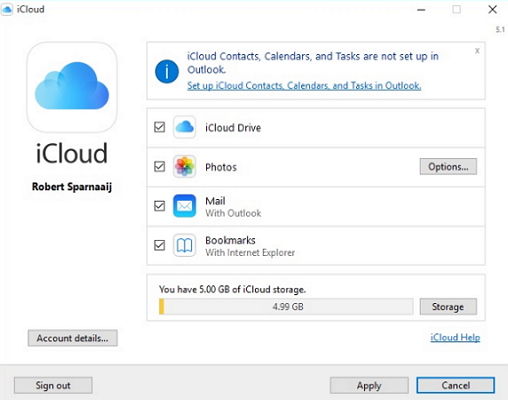
Step 1: Ensure that you are using the latest iCloud control panel. If not, take a moment to install it.


Step 2: Now sign in to your Outlook account and then go to File > Account settings.


Step 3: Click on the Data File Tab and then go to the iCloud Menu. Here, remove and close your email account.


Step 4: Now click on the “Windows” icon and open the control panel. The open iCloud and sign in if you are not already logged in.


Step 5: Click on Setup iCloud contacts, calendars and tasks.


Now open Outlook and check if your iCloud contacts are syncing.


6.10.2018

iOS 12 makes Digital Health Management possible


1. LIMIT USAGE WITH SCREEN TIME


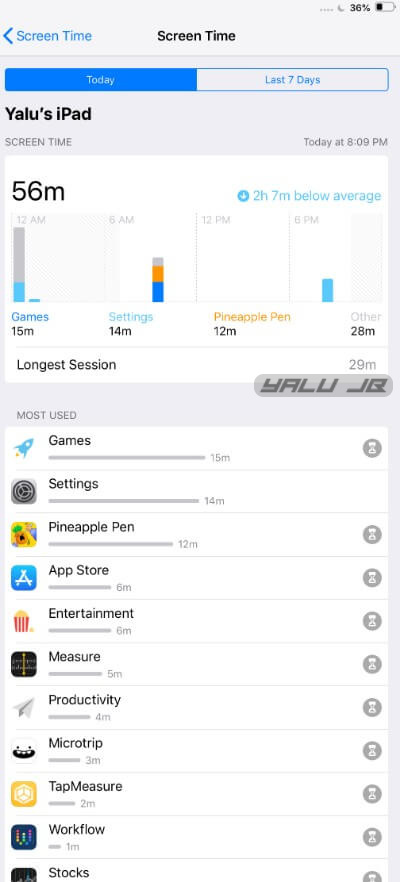
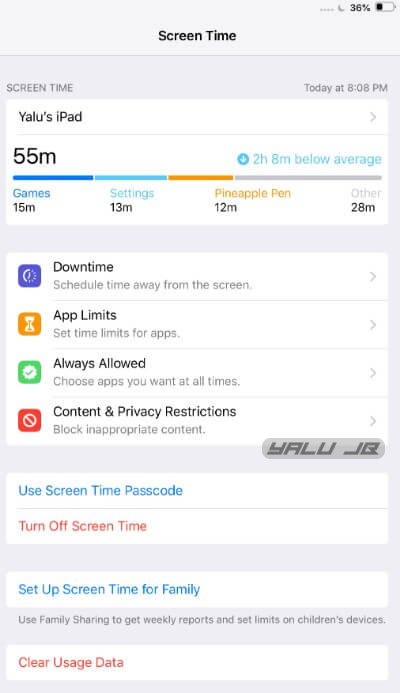
Screen Time is a new iOS 12 feature that tracks screen time usage by apps and app categories.


It is a more powerful alternative to the Moment app that tracks screen time for all apps on your iPhone.


The Digital Health Mangement section also doubles up as the Parental Controls section.


All the actions given below can be performed on your device and on the devices of your family or children.


Here’s how you can check and track screen time usage.


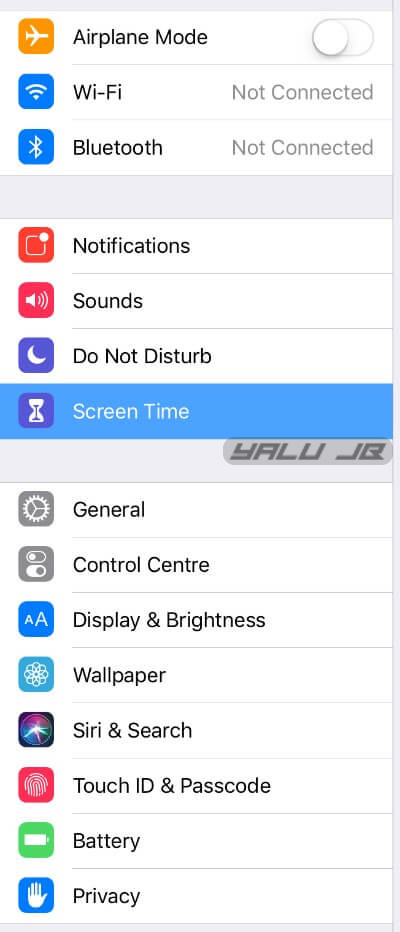
Step 1 Open Settings and go to the Screen Time section.


Step 2 Your device will now display screen time statistics as shown below. Tap anywhere on the stats to access detailed usage charts.


You can use the “Set Up Screen Time for Family” option to limit and control the usage for your children.


Step 3 Scroll down to access the number of pickups, that is, when you unlock your Apple device and the number of notifications you receive hourly.


You can use the “Set Up Screen Time for Family” option to limit and control the usage for your children.
2. RESTRICT APPS WITH APP LIMITS


App Limits section allows you to impose restrictions on apps and app categories.


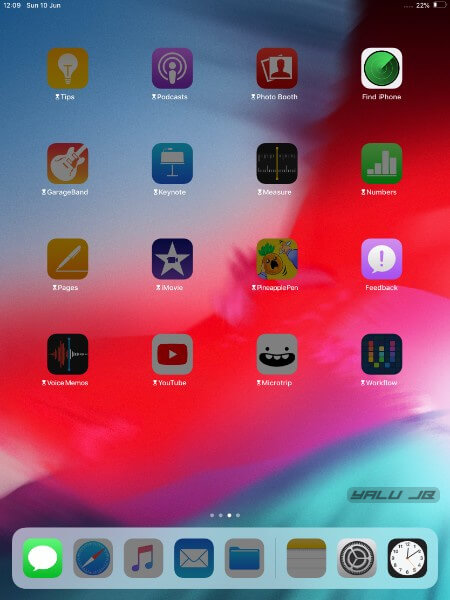
Once you “limit” an application, its icon will appear dark and an hourglass icon, which indicates that an app is limited, will appear alongside its name.


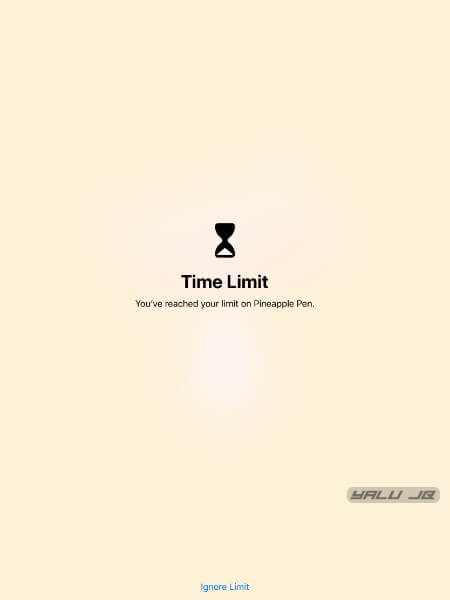
If you try to open a restricted app or game, iOS will promptly remind you of the “limit” in place with a paywall-esque screen.


Here’s how you can restrict apps on your iPhone and iPad.


Step 1 Go to Settings > Screen Time > App Limits.


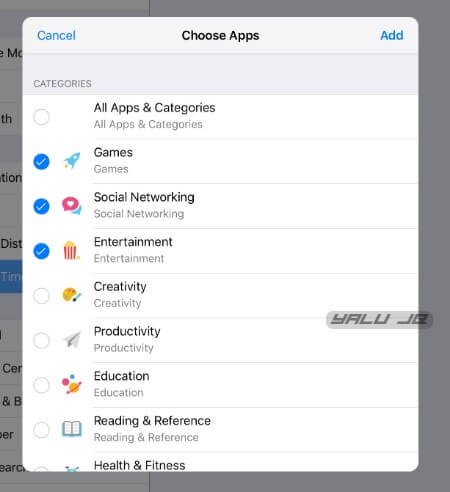
Step 2 Tap Add Limit and select the app category that you want to limit.


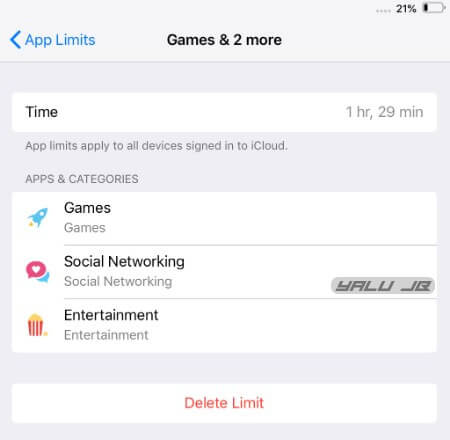
Step 3 Set the Time limit for which you want to restrict the apps belonging to the aforementioned categories.


Step 4 With the limit in place, here’s what you will get when you try opening an app from the limited categories.


Step 5 (Optional) Restricting an app doesn’t mean you can’t open it for the scheduled time. Tapping Ignore Limit and selecting “Remind me in 15 minutes” or “Ignore Limit for Today” will allow you to bypass the limit.


“Remind me in 15 minutes” option will bug you after 15 minutes have passed since you opened and began using the app whereas “Ignore Limit for Today” will completely nullify the current limit for today.


Alternatively, you can set up app limits from the screen time section by tapping the hourglass icon.
3. ENABLE DOWNTIME


Downtime allows you to schedule time away from your device. It achieves that by imposing “app limits” on each and every app and game installed on your device except for a few stock apps like Phone.


Although downtime disables all apps, you can manually whitelist any app that you would want to use during your scheduled time period.


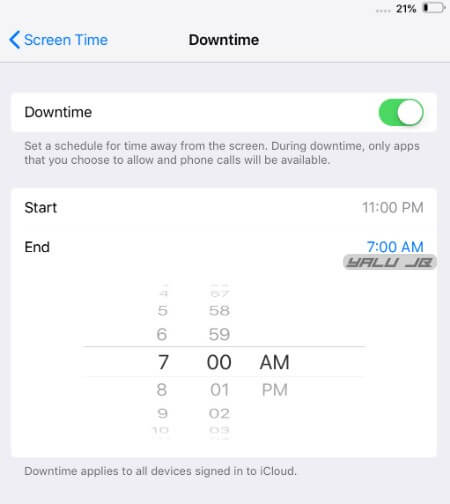
Step 1 Go to Settings > Screen Time > Downtime.


Step 2 Enable Downtime.


Step 3 Specify the “Start” and “End” time. Remember, Downtime will stay active throughout this time cycle.


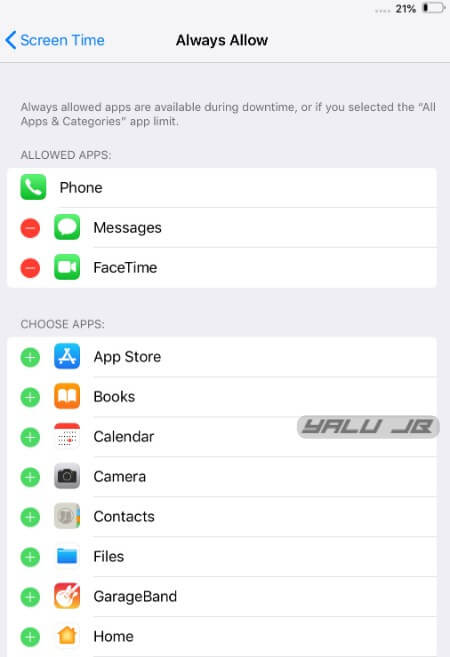
Step 4 Go to Always Allow section and add/remove any app or game from the whitelist except for the stock Phone app. I recommend enabling only the Phone and FaceTime apps.


WRAPPING UP


iOS 12 really hits the bullseye with its impeccable digital wellness management.
Sponsor ads:
Gihosoft iPhone Data Recovery Free
Free iPhone Data Recovery Software for Windows/Mac
Recover up to 12+ types of files, including contacts, SMS, photos, WhatsApp, Viber, notes, etc.
Restore lost data from iOS devices directly or from iTunes and iCloud backup
Recover iPhone data lost due to iOS upgrade/jailbreak, accidental deletion, device lost or broken
Support all the latest iPhone, iPad and iPod Touch
Both Free and Pro version.
If you lost data after you updated to a new iPhone, you can always use Gihosoft iPhone Data Recovery to get the data back from the old iPhone or backup.You may also like: iphonerecovery.com
If you use android phones, please choose Gihosoft Android Data Recovery.
With Gihosoft Android Data Recovery, no longer afraid of data loss!

Android P already has this feature but iOS really knocks it out of the park with its user-friendly interface, attention to detail, and customizability.


I have already limited applications belonging to the Games, Social Networking, and Entertainment categories as I spend a lot of time on social networks and YouTube.


Here’s to hoping that some extra time on my hands will definitely allow me to pursue honorable endeavors like talking to other humans.

HOUDINI11 SEMI-JAILBREAK NOW SUPPORTS IOS 11


HOUDINI11 SEMI-JAILBREAK NOW SUPPORTS IOS 11


As you already know, Houdini is a limited version of jailbreak and brings basic theming and customization to the iOS operating system. It is also called a “semi-jailbreak”.


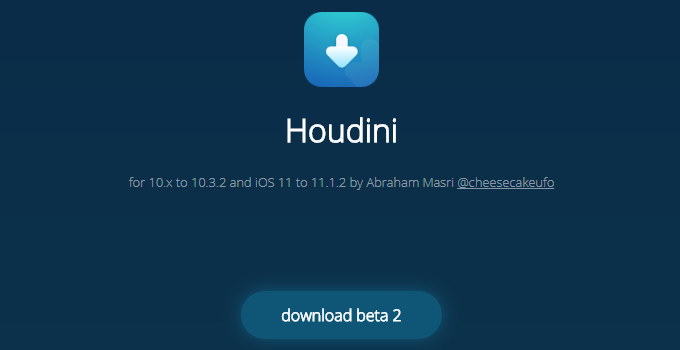
Earlier, it was available only for iOS 10-10.3.2 versions. The latest update brings support for iOS 11 firmware as well.Must read:Gihosoft Free iPhone Data Recovery:https://www.gihosoft.com/iphone-data-recovery-free.html


Houdini11 uses Ian Beer’s async_wake exploit to get root access and apply the necessary customization. Therefore, you can use it only up till iOS 11.1.2 and all other newer versions like iOS 11.2 are incompatible.


Here’s what’s new in the latest update.


Built-in Ad-blocker


Change icon shape


Enable new emoji packs


Customize boot logo


Add your face to Animojis in iPhone X


Quick startup


Additional safety measures


Theme support for iOS 11 (not working yet)


Update (June 6) – Houdini Beta 3 released for iOS 11.2-11.3.1 firmware versions. You must have a paid developer certificate to run the app on your device. Remember, you must turn Siri off beforehand to increase the success rate of the exploit.
WHICH DEVICES IS HOUDINI11 COMPATIBLE WITH?
IPHONE


iPhone 5s


iPhone 6/iPhone 6 plus


iPhone 6s/6s plus


iPhone SE


iPhone 7/7 plus


iPhone 8/8 plus


iPhone X
IPAD


iPad Air


iPad Air 2


iPad Pro


iPad mini 2


iPad mini 3


iPad mini 4
IPOD


iPod touch 6
DOWNLOAD HOUDINI11 IPA


Beta 2r1 (11-11.1.2)


Beta 3 (11.2-11.3.1)
REQUIREMENTS


A compatible iPhone, iPad, and iPod touch


iOS 11-11.1.2 firmware


A computer running Windows, Linus, or macOS
HOW TO INSTALL HOUDINI11 ON IOS 11-11.1.2/11.3.1 FIRMWARE


Step 1 Download the Houdini11 beta 2 IPA file using the download link above.


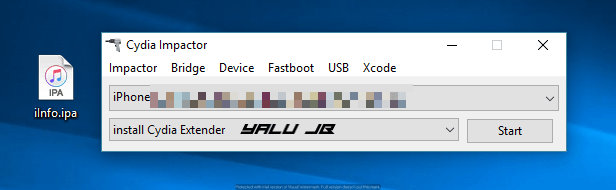
Step 2 Connect your device to the computer and start Cydia Impactor. Wait for it to recognize your device.


Step 3 Sideload the IPA file by dragging it over to Impactor’s window.


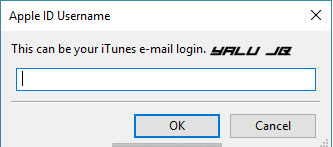
Step 4 Key in your Apple ID details.


Step 5 Wait until it sideloads the IPA onto your Apple device. Once it’s done, the app will appear on your home screen.


Step 6 Go to Settings > General > Profiles & Device Management and verify the Houdini app under your email address.


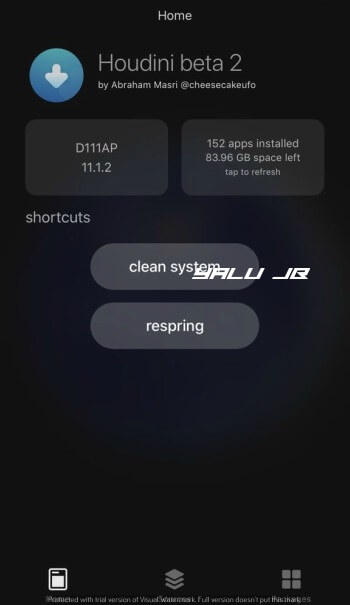
Step 7 Open the app from your home screen. You can now perform various actions such as respring and clean system and customize your device.


Themes aren’t working right now so make sure you don’t apply them. However, the developer will surely add theming support on iOS 11 in future versions.


You can also install it using package installers such as Tutuapp and Appvalley. I don’t recommend it because they add advertisements in all their applications and you must use jailbreak tools from trusted sources.


Sponsor Ads:


Gihosoft iPhone Data Recovery is a professional iPhone Data Recovery software to get back all your lost text message, photo, video, call history, note, contact and more from iPhone/iPad/iPod Touch. It offers a full solution to recover your lost data in different tough situations. Besides recovering data directly from iPhone, iPad and iPod touch, it also allows you to recover data from iCloud and iTunes backup files. What's more, it supports Smart Recovery modes that can find your iPhone data quickly.https://www.gihosoft.com/iphone-data-recovery-free.html

For more jailbreak community news, follow and like us on Twitter and Facebook.

8.09.2017

Apple has just released the iOS 11 public beta

Apple has just released the iOS 11 public beta, giving iPhone and iPad users the chance to download and install the upcoming version right now.


Although Apple first pulled back the curtain on iOS 11 back in June at the massive WWDC 2017 conference, iPhone and iPad users have had to wait patiently until now before finally getting a proper look.If you lost data after you updated to a new iPhone, you can always use Gihosoft iPhone Data Recovery to get the data back from the old iPhone or backup.You may also like: iphonerecovery.comIf you use android phones, please choose Gihosoft Android Data Recovery.
iMyFone D-Back iOS Data Recovery Get Back Lost Files on iPhone:https://www.imyfone.com/iphone-data-recovery/
iMyFone Umate Pro can delete junk, memory hogs and cache to give your iPhone a spring-clean speed boost and get it running faster.

Of course, the full, final version of iOS 11 hasn't been released just yet. That likely won't happen until October-time, to coincide with the worldwide release of the iPhone 7S and iPhone 7S Plus. Those will be the first Apple devices to come packing the latest iOS as standard.
However, Apple has finally released the public beta of iOS 11, for any keen tech junkies to check out ahead of time. Here's all you need to know, including full instructions for downloading and installing on your own iPhone or iPad.

What is iOS 11?

Fresh for 2017, the next version of iOS 11 brings a host of new features to Apple's mobile devices. The likes of Siri and Apple Pay have been further improved, with better integration than ever before, while you can also expect a more streamlined Control Center and other interface tweaks. That's on top of some shiny new features and some welcome camera improvements too. Related Read:iMyFone recover deleted text messages iPhone without backup

What is the iOS 11 public beta?

If you're not exactly blessed with buckets of patience, you might want to get all of these shiny new features and updates onto your iPhone or iPad right now. Luckily, Apple has made that possible with the public beta release of iOS 11.
The public beta can be downloaded for free, simply by signing up to Apple's Beta Software Program. This can be done quickly and easily online, via your device.

Can my iPhone run the iOS 11 public beta?

Apple recommends that only the following iPhones attempt to run iOS 11. Older handsets may see severe slowdown and other issues, as they struggle to cope with the more demanding software.
  • iPhone 7
  • iPhone 7 Plus
  • iPhone 6s
  • iPhone 6s Plus
  • iPhone 6
  • iPhone 6 Plus
  • iPhone SE
  • iPhone 5s

Can my iPad run the iOS 11 public beta?

Apple's minimum requirements state that only the following iPads can run iOS 11. If you have an older iPad, we'd recommend steering clear (and perhaps consider an upgrade).
  • 12.9‑inch iPad Pro (1st and 2nd generation)
  • 10.5‑inch iPad Pro
  • 9.7‑inch iPad Pro
  • iPad Air 2
  • iPad Air
  • iPad (5th generation)
  • iPad Mini 4
  • iPad Mini 3
  • iPad Mini 2

How do I download and install the iOS 11 public beta?

Check out our complete guide to installing the iOS 11 beta for full instructions on getting started. It's a pretty quick and painless procedure, and won't cost you a penny.
Of course, before you get stuck into any beta offering, we'd strongly suggest making a backup of your iOS device. After all, beta software is likely to contain bugs and may prove incompatible with your apps, which can be a massive pain. If that happens, you'll want to back out the update asap.

IObit Smart Defrag 5.7 Pro Serial Key (FREE)

IObit Smart Defrag Pro Serial Key
Description:
IObit Smart Defrag 5.7 Serial Key - is such a tool that provides extremely fast and efficient defragmentation to your hard drives intelligently for faster file loading and high disk performance. With “install it and forget it” feature, IObit Smart Defrag Pro works automatically and quietly in the background on your PC, keeping your hard disk running at its top speed. It remains only to note the pleasant user interface SmartDefrag Pro Key, there is the possibility to change the appearance of the product, there is Russian and other localizations, plus the product is completely free, in general I liked it, I hope you too. Do not forget to leave your comments about this product, express your thoughts, I wish you all a pleasant day and as always do not forget to remind.iMyFone Umate Pro can delete junk, memory hogs and cache to give your iPhone a spring-clean speed boost and get it running faster.
If you lost data after you updated to a new iPhone, you can always use Gihosoft iPhone Data Recovery to get the data back from the old iPhone or backup.You may also like: iphonerecovery.com
If you use android phones, please choose Gihosoft Android Data Recovery.

What's New in IObit Smart Defrag 5.7:
  • Supported automatically shutting down PC after a scheduled defrag
  • Improved defrag engine to defrag large files faster and more effectively
  • Optimized work process for a better user experience
  • Updated multiple languages
  • Fixed all known bugs.
Check Also: