2.19.2019

How to Manually Delete Recent Call History on iPhone? (Recoverable) 2019


How to Manually Delete Recent Call History on iPhone? (Recoverable)

You can manually clear call history from iPhone but it's not secure for your data. Unfortunately using this means will not clear your call history permanently because they can be recovered using top data recovery tools.

Therefore, for privacy protection and security reasons, using the common way to clear your call history is not enough and hence will require a better method which we will see next. Clearing your call history using the common method will involve deleting it from your phone app using the following steps:

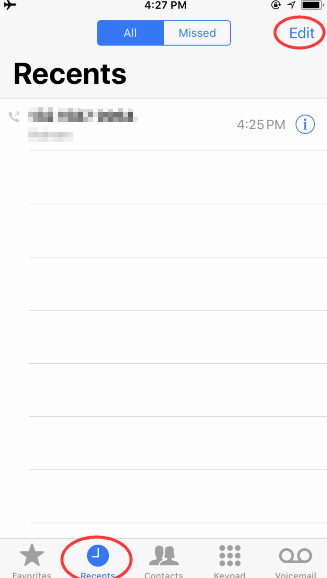
Step 1: Go to Phone App, it will automatically show you all the recent call history. If it isn’t, click “Recents”. Tap on the “Edit” button on the upper right corner.


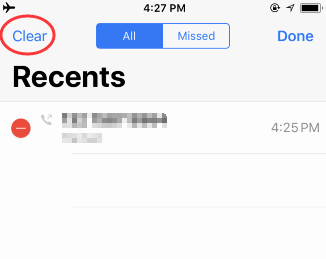
Step 2: Then tap “Clear” on the upper left corner.


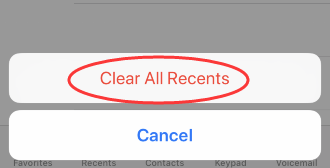
Step 3: On the pull up options, select “Clear All Recent” to confirm.

How to Manually Clear Recent Contacts on iPhone? (Recoverable)
1Hide Recent and Favorite Contacts from the Multitasking Screen

Your favorite and recent contacts can also be found in the iPhone/iPad Multitasking Screen. Double-click the home button and you can see them at the top. But what if you don't want your contacts to appear there? What If you want to keep your personal contacts from being peeped? Fortunately, you can turn it off!

Step 1: Go to your iPhone Settings app.

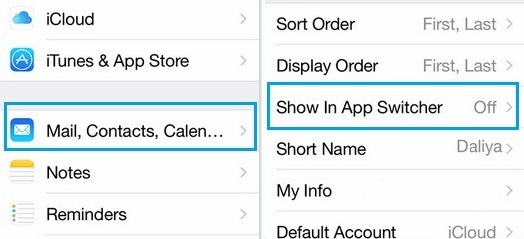
Step 2: Tap on “Contacts, Mail and Calendars”.

Step 3: Then tap on “Show In App Switcher”. You can find it right under the contacts session.


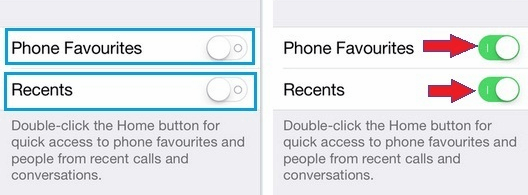
Step 4: Toggle Off the options for “Recent” and “Phone Favorites”.

2Remove Recent Contacts from Your iPhone’s Messages App

At the point of typing text messages, typing the first letter of the name in the “To” field will bring out recently contacted lists and the current list and unfortunately the list could be occupied by some unwanted contacts. This slows down messaging but there is a way to clear these unwanted contacts from recent lists as seen below.

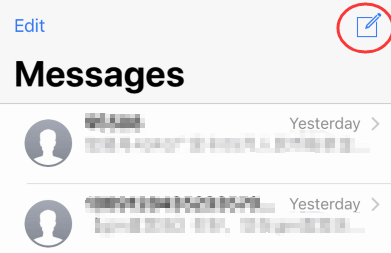
Step 1: Open your message App on iPhone. Firstly, click to create a new message.


Step 2: Start tying a message with the letter of the alphabet you want to remove.

Step 3: Look for the contacts that has the “i” symbol to the right.
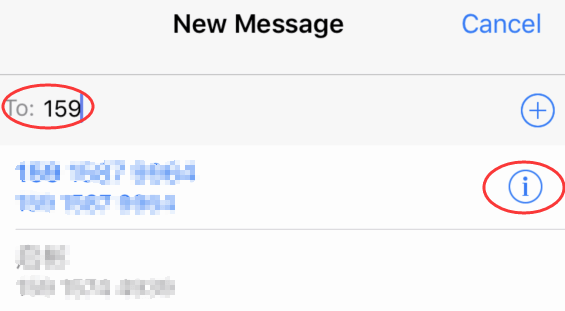


Step 4: Click on that symbol, when it show you the new interface. Choose “Remove from Recents”.


This solves the problem and you have to repeat the process for other unwanted contacts you want to remove.If you use android phones, please choose Gihosoft Android Data Recovery
How to Manually Delete Recent Safari Search History on iPhone (Recoverable)

Your iPhone Safari stores a lot of data about what you have searched. Usually this makes things easier for you, you can track down a website you've visited when you want it next time. But if you're worried about someone seeing something private on your Safari, you can clear the history. Easy steps like below:

Step 1: Open the Settings app. Clearing your history through the Settings app will ensure that everything is deleted.

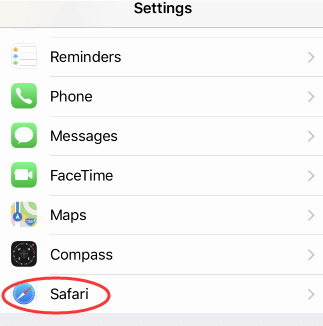
Step 2: Scroll down to find and tap "Safari".


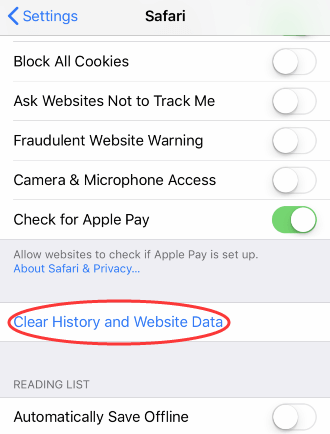
Step 3: Scroll down again in the Safari menu and find "Clear History and Website Data" Tap on it without hesitate.


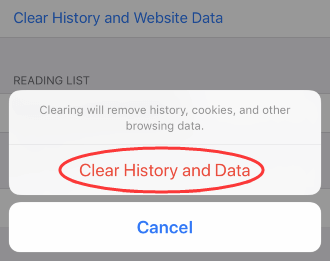
Step 4: On the pull up options, just click “Clear History and Data” to continue. Your Safari browsing history, cache and cookies will be deleted.


You should know that delete Safari histories from iPhone directly may not clean them completely. It can be recovered with professional software. So I we suggest you to use iMyFone Umate Pro to delete recent safari search history on iPhone. It makes sure that these safari history won't be recovered anymore. Click the button below and have a try.Sponsor ads:Offline Music Apps for iPhone

Must Read:If you lost data after you updated to a new iPhone, you can always use Gihosoft iPhone Data Recovery to get the data back from the old iPhone or backup.

Gihosoft Free iPhone Data Recovery:iphonerecovery.com

2.18.2019

Best iTunes Alternatives for iPhone/iPad iOS 12 2018-2019


iTunes is known for being not user-friendly and open for its users. iTunes is the official platform to manage/transfer iPhone media but it is restrictive that you cannot manage your iPhone data at will. This really push lots of iTunes users to seek a best iTunes alternative iPhone.

There are a few limits to using iTunes that you may not even realize to transfer your music/videos/files between your iPhone/iPad and computer/iTunes library:


iTunes is restricted to only a handful of file formats. Only some specific formats are supported. Or you need to use converter in advance.


iTunes can often run very slowly and inefficiently on PC’s. It is simply too big and clunky of a program. Many times it will also run on start-up, slowing down your PC from the moment it boots.

Also Read:How to Turn Photos into Cartoons and Anime Drawings?
Also Read:Top 6 Windows Photos Alternatives to View Photos on Windows 10
Also Read:How to Unlock Disabled iPhone 4s/5/6s/7/8/X/Xs with/without iTunes or Computer
Also Read:How to Fix Windows was Unable to Format SD Card/USB Drive
Also Read:Format Factory Alternative for Mac – Convert Videos on Mac
Also Read:How to Fix the “Black Screen of Death” on iPhone XS/X/8/7
Existing files on iPhone/iPad will be covered when syncing with iTunes. When using iTunes sync to add music/videos/files to iPhone, the existing data will be deleted as well.


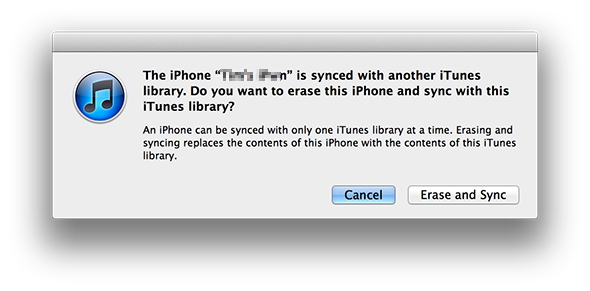
An iPhone can be synced to only one computer. If you try to sync an iPhone with another computer/iTunes library, your iPhone will be erased.


If you enjoy having the freedom to move and use your music files as you wish, then perhaps a third-party iTunes alternative would be best for you. You do have a choice! Here are some great iTunes alternative that will make your iOS device more open and easier to use:
#2. CopyTrans - A Simple iTunes Alternative


CopyTrans is the also a complete alternative tool to transfer music, photos, videos, contacts and more from PC to iPhone, iPad and iPod without needing to go through iTunes in the process. However, it's only available for Windows PC. No Mac version is available yet. If you're looking for an alternative to iTunes Mac OS X, you should try CopyTrans alternative for Mac.

Pros:

· Easy transfer. · Transfer by categories like Artist, Album etc.. · It doesn't need you to use iTunes.

Cons:

· Doesn't transfer .wma. · Doesn't detect music automatically when the device is plugged in.

Price: $29.99

Supported OS: Windows 7, 8, 10, Vista and XP.

Rank: (4.5/5 stars)
Bonus Tips:
Restoring Lost Photos and Videos from iPhone

If you have deleted some of your pictures or videos from your gallery, then there is a straightforward way to Recover Deleted Files iPhone back.

After you delete the media files from your gallery, be it photos or videos, then you must know that iOS has a feature that the deleted media files doesn’t get deleted immediately, but it gets compiled to a temporary folder from where it gets deleted after 30 days. If you lost data after you updated to a new iPhone, you can always use Gihosoft iPhone Data Recovery to get the data back from the old iPhone or backup. Should you wish to recover these files, you must go to that “recently deleted” folder and retrieve these files before 30 days.

If you use android phones, please choose Gihosoft Android Data Recovery.

Worth reading:Best youtube downloader online download youtube 1080p

Must Read:

How to transfer messages from iPhone to iPhone

Must read:icloud activation lock removal

Must read:Gihosoft Free iPhone Data Recovery:https://www.gihosoft.com/iphone-data-recovery-free.html

2.17.2019

Disabled iPhone has synced with iTunes before 2019


Disabled iPhone has synced with iTunes before
Erase and Recover Data from Disabled iPhone using iTunes

If you have synced this iPhone or iPad with the computer before, you still have the possibility to make a backup of your iPhone with iTunes. Without this premise, you will be unable to make your iPhone trust the computer or unlock your device without a password, and you device will not be connected to iTunes successfully then.

Step 1: Open iTunes and connect your iPhone or iPad to this computer through USB cable.

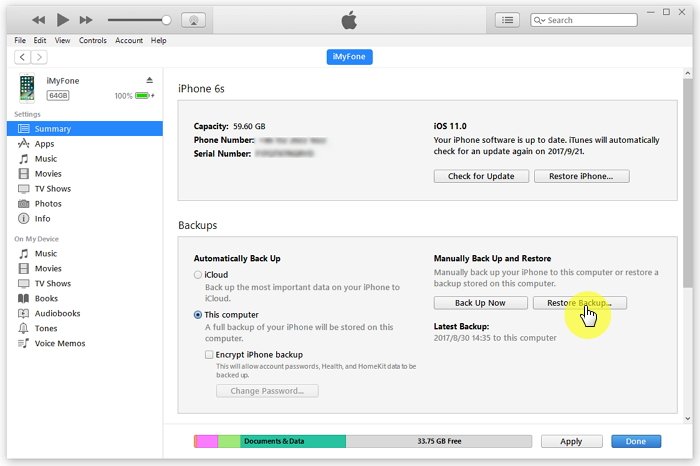
Step 2: When your iPhone appears on iTunes, select it. Then you should click on the "Back Up Now" button to continue. When the backup process is finished, the iTunes backup file will be saved on the computer.

Also Read:Top 6 Windows Photos Alternatives to View Photos on Windows 10

Also Read:XD Card Recovery – Recover Deleted Photos from xD-Picture Card

Also Read:How to Convert SWF to MP4 on Mac or Windows

Also Read:How to Fix the “Black Screen of Death” on iPhone XS/X/8/7


Then follow these simple steps to restore the device and hence enable it:

Step 1: Connect the iPhone to the computer you synced with and then wait for iTunes to sync with your device and create a backup.

Step 2: Once the sync is done, click "Restore iPhone" and once you get to the Setup screen while restoring the iPhone tap "Restore from iTunes backup." Select the latest backup to restore the device.


Erase your Device with Recovery Mode

If you hadn't set up Find my iPhone on iCloud or synced your device with iTunes, you can erase the device in recovery mode. Here's how to do it.

Step 1: Connect the iPhone to the computer and launch iTunes.

Step 2: Force the iPhone to restart. You can do that by holding the Sleep/Wake and the Home buttons down at the same time until you see the recovery screen. (For iPhone 7, you hold the Sleep/Wake and Volume Down Buttons)

Step 3: When you see the option to Restore or Update the iPhone popup in iTunes, choose "Restore" and iTunes will download the software for the device.


Step 4: Wait for the process to finish and then set up the device as new. If the process takes more than 15 minutes, the device will exit recovery mode and you need to start again.
Disabled iPhone has never synced with iTunes

If you've never synced with iTunes, you'll need to use recovery mode to restore your device. This will erase the device. Please make sure that you have set up Find my iPhone in iCloud before. Here's how to do it.

Step 1: From any other device go to https://www.icloud.com/find and then sign in with your Apple ID.

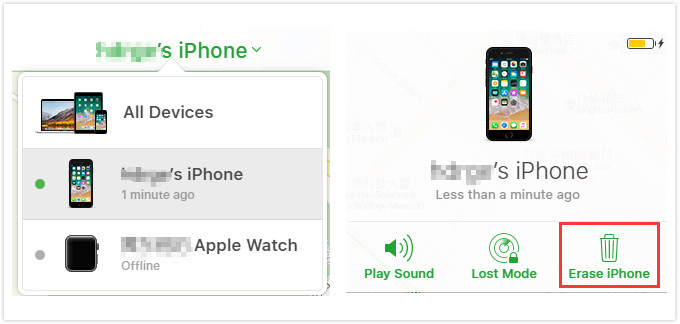
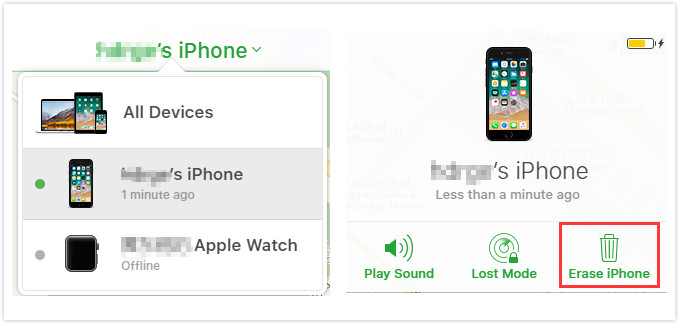
Step 2: Click on "All Devices" and then select the device you want to erase. Click "Erase iPhone" to erase the device.


Step 3: You can choose to restore the device or set it up as new.
Part 4: Tips for Some Specific Situations with iPhone Disabled


Tips for users whose iPhone is disabled due to forgetting screen passcode


Tips for users whose iPhone is disabled due to iOS issues


Tips for users whose iPhone is disabled due to hardware issues
1Tips for users whose iPhone is disabled due to forgetting screen passcode:
Phase 1: Unlock your device:

The methods to unlock your device have already been described as above. According to Apple officially recommendation, there are two ways to erase your iPhone without password. But you need know that if your device is erased, your current data will not be recovered directly. You must rely on your backup.Restoring Lost Photos and Videos from iPhone

If you have deleted some of your pictures or videos from your gallery, then there is a straightforward way to Recover Deleted Files iPhone back.

After you delete the media files from your gallery, be it photos or videos, then you must know that iOS has a feature that the deleted media files doesn’t get deleted immediately, but it gets compiled to a temporary folder from where it gets deleted after 30 days. If you lost data after you updated to a new iPhone, you can always use Gihosoft iPhone Data Recovery to get the data back from the old iPhone or backup. Should you wish to recover these files, you must go to that “recently deleted” folder and retrieve these files before 30 days.

If you use android phones, please choose Gihosoft Android Data Recovery.

How to Turn off iOS Activation Lock without Password 2019


How to Turn off iOS Activation Lock without Password 2019
Ask the Previous Owner to Remove iOS Activation Lock

It is quite possible that you open your Apple device and find that iOS activation lock is still linked to the previous owner’s account. You need to contact the previous owner and ask them to erase the device and remove the iOS activation lock. The screen might view either of the two things.
1. Remove Account When It Asks for Apple ID and Password

If the device asks for both an Apple ID and passcode, it means the device has already been erased. You can contact the previous owner to follow the steps below to remove their account.


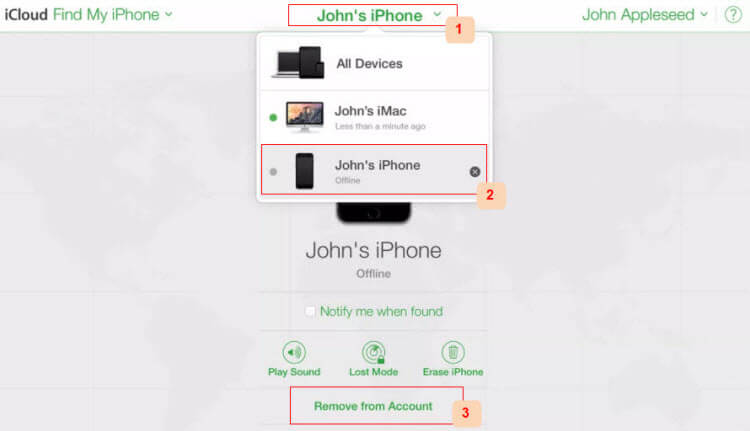
Go to https://www.icloud.com and log in with his Apple ID and password.


Click on “Find iPhone”.


Tap “All Devices” and choose your device.


Hit “Remove from Account”.

Then you restart your iDevice. It won't be linked to the previous Apple ID any more. You just need to follow the onscreen instructions to set it up and enjoy it.


2. Remove Account When It Asks for Only Password

If the device asks for only password for an existing Apple ID, it means the device hasn’t been erased yet. The previous owner should remotely erase the device and then remove the device from his iCloud account.


Go to https://www.icloud.com and log in with his Apple ID and password.


Find and select “Find iPhone”.


Tap “All Devices” at the top and choose your iDevice.


Tap “Erase iPhone/iPad”.


Enter their Apple passcode and hit “Next”. Then hit “Next” again without entering a phone number.


When it's done, everything in your device will be deleted including the Apple ID account. But note that, this takes effective only when your iPhone has internet.
How to Check for iOS Activation Lock Before Purchasing An iDevice

Instead of going through all this trouble it is better that you check your iDevice for the iOS activation lock before purchasing one that is already used.


You can check iOS activation lock status of your device by visiting https://icloud.com/activationlock from any computer.


Or you should switch on the device and see if there is any passcode required to continue. You would know it instantly if the device has an iiOS activation lock or not. To completely ensure that the device is safe to purchase from an authorized retailer. If you see the screen displaying “Set up your iPhone” “Set up your iPad” or “Set up your iPod” you should be content that the device does not have an iOS activation lock.
When do We Need to Turn off iOS Activation Lock


Erase your iDevice and turn off iOS activation lock before you sell or give away your device. Or other person can not activate and use the device.


Turn off iOS activation lock before sending your device to repair. (It is always wise to play safe. If you are concerned about your privacy, you can also back up your data and reset.) Or the technicians cannot be able to perform service on your device.

Sponsor ads:

Jihosoft iPhone Data Recovery:https://www.jihosoft.com/recovery/ios-data-recovery.html

Jihosoft iPhone Data Recovery

Free iPhone Data Recovery Software for Windows/Mac

Recover up to 12+ types of files, including contacts, SMS, photos, WhatsApp, Viber, notes, etc.

Restore lost data from iOS devices directly or from iTunes and iCloud backup

Recover iPhone data lost due to iOS upgrade/jailbreak, accidental deletion, device lost or broken

Support all the latest iPhone, iPad and iPod Touch.

Tips:

How to transfer messages from iPhone to iPhone

Gihosoft Free iPhone Data Recovery:https://www.gihosoft.com/iphone-data-recovery-free.html


Gihosoft iPhone Data Recovery Free

2.12.2019

Apple to Host an Event on March 25 for Upcoming Subscription Services


If reports are accurate, then Apple is asking publishers for 50% of the revenue cut for its planned News subscription service.

That may suggest the company is expecting this new subscription service to be a hit among customers. And what may be another signal of that idea is an entire event scheduled to unveil that service. At least, that’s what BuzzFeed is reporting today. According to the publication, Apple is ready to promote its upcoming News subscription service in a big way, and it will unveil it during an event scheduled for Monday, March 25.

This will apparently not be an event to unveil the AirPods 2, or even a new iPad mini. It will take place at the Steve Jobs Theater on the Apple Campus.

“Apple has settled on a date for its first big product announcement of 2019. Sources tell BuzzFeed News that the company plans to hold a special event on March 25 at the Steve Jobs Theater on its Apple Park campus. Headlining the gathering: That subscription news service that has been all over the news today. Unlikely to make an appearance: next generation Airpods, or that rumored new iPad Mini.

Sources described the event as subscription services focused, but declined to say anything about Apple’s standalone video streaming service which is also rumored to debut in 2019.”

However, as noted above, this could be an event that’s not just about the News subscription service, but rather Apple’s new subscription services in general. That includes Apple’s own movies and TV streaming service, which is expected to launch in April. Indeed, there was a previous rumor that said Apple would offer up a big bundle for its News and original content streaming efforts, so an event could be a way to promote all of it at once.

It is worth noting that the report does suggest the company may change its plans if it can’t nail down negotiations with publishers. That was previously reported to not be going very well, as Apple is reportedly demanding 50% of the revenue from publishers.

So, circle that date on the calendar with a pencil just in case.

[via BuzzFeed]

Sponsor ads:

Gihosoft Free iPhone Data Recovery:iphonerecovery.com

Free iPhone Data Recovery Software for Windows/Mac

Recover up to 12+ types of files, including contacts, SMS, photos, WhatsApp, Viber, notes, etc.

Restore lost data from iOS devices directly or from iTunes and iCloud backup

Recover iPhone data lost due to iOS upgrade/jailbreak, accidental deletion, device lost or broken

Support all the latest iPhone, iPad and iPod Touch

Both Free and Pro version.

If you lost data after you updated to a new iPhone, you can always use Gihosoft iPhone Data Recovery to get the data back from the old iPhone or backup.

Top 10 Best FRP Bypass Tools to Bypass Google Account on Android Device 2019

Worth reading:download youtube 1080p

If you use android phones, please choose Gihosoft Android Data Recovery


Jihosoft Android Data Recovery: the best Android Data Recovery software for Windows and Mac to recover deleted contacts, messages, photos, videos, WhatsApp and etc from Android

1.31.2019

Apple Has Now Blocked Google From Running Its Internal iOS Apps and Betas


What started as a pretty big Facebook issue transformed into an equally-sized Google issue, and Apple has responded in kind.

The Verge reports on Thursday that Apple has pulled the plug on several different Google-owned iOS apps, blocking the company’s internal apps. This prevents Google from distributing these apps altogether, meaning early versions of Google Maps, Hangouts, Gmail, and other “pre-release beta apps have stopped working today”. Google’s other internal apps, like Gbus for transportation and Google’s own cafe app, have also stopped working.

The block comes on the heels of details regarding Google’s “Screenwise Meter” app, which worked in a similar way to Facebook’s Research VPN iOS app to collect user data, basically unrestricted. In those cases users agreed to have their data mined and collected by each company, all in return for monetary compensation in one way or another. The issue, though, came down to how these companies handled Enterprise Certificates. Both companies were using these certificates to distribute apps to iOS users, which is against Apple’s App Store policy.

Apple blocked Facebook’s app and the social network eventually removed the app altogether from the App Store — but not before Apple pulled their certificates and stopped Facebook’s own internal apps from working as well. Google, for its part, did pull the Screenwise Meter app the same day it was discovered and reported on, but that hasn’t stopped Apple from doling out the consequences of knowingly running afoul of the App Store rules.

This is an interesting situation, as Apple has every right to implement ramifications for those who break clearly-printed rules to its digital storefront. But the company is definitely enacting a lot of power, which is not sitting well with some.

What do you think?

[via The Verge]

Sponsor ads:

Gihosoft Free iPhone Data Recovery:iphonerecovery.com

Free iPhone Data Recovery Software for Windows/Mac

Recover up to 12+ types of files, including contacts, SMS, photos, WhatsApp, Viber, notes, etc.

Restore lost data from iOS devices directly or from iTunes and iCloud backup

Recover iPhone data lost due to iOS upgrade/jailbreak, accidental deletion, device lost or broken

Support all the latest iPhone, iPad and iPod Touch

Both Free and Pro version.

If you lost data after you updated to a new iPhone, you can always use Gihosoft iPhone Data Recovery to get the data back from the old iPhone or backup.

Top 10 Best FRP Bypass Tools to Bypass Google Account on Android Device 2019

Worth reading:download youtube 1080p

Jihosoft Android Data Recovery: the best Android Data Recovery software for Windows and Mac to recover deleted contacts, messages, photos, videos, WhatsApp and etc from Android
If you use android phones, please choose Gihosoft Android Data Recovery

1.24.2019

What’s New in iOS 12.2


On Thursday, Apple seeded the first developer beta of iOS 12.2, and with it brought new features to the mix.

Apple added quite a bit of new items to its mobile operating system with iOS 12.2. We have put together a quick list of some of the bigger new additions, which you can find below. Of course, two of the biggest new features includes Canadian support for Apple News, and “Hey Siri” support for AirPods 2 (which are still not even official). Here’s the rest:


HomeKit TV Support and Controls: Apple has already announced third-party TVs from the likes of Vizio and Samsung will support AirPlay 2 this year. iOS 12.2 lays the groundwork for that. The beta includes support for third-party TVs, but also adds the ability to add certain TVs to the list of devices that can be sent content.


Updated Screen Mirroring Icon in Control Center: Apple has updated the Screen Mirroring icon in Control Center, making it a bit more obvious that you are mirroring two screens.


Faster Way to Add Money to Apple Cash: Apple has added an “Add Money” option when you tap on the Apple Pay Cash in the Wallet app. This makes it easier to quickly add funds.


A New AirPlay Icon: Apple has updated the AirPlay icon in Control Center, putting it more in line with the icon on other platforms like macOS.


Apple Shows Better Info for Unsecure Websites: Apple now shows “Not Secured” on an unsecured website in the URL, making it more obvious that a site isn’t offering an HTTPS connection.


Apple Maps Can Now Show Air Quality: You can find air quality for an area within the stock Weather app, but Apple is now bringing that information to Apple Maps. It can be turned on in the Maps Settings section.Must Read:If you lost data after you updated to a new iPhone, you can always use Gihosoft iPhone Data Recovery to get the data back from the old iPhone or backup.


Gihosoft Free iPhone Data Recovery:iphonerecovery.com
So, there we go. Quite a bit to add!