7.25.2019

Apple Acquiring Intel’s Smartphone Modem Business for $1 Billion


As rumored, Apple has acquired the majority of Intel’s smartphone modem business. The acquisition will see Apple paying Intel $1 billion and will see 2,200 Intel employees join Apple along with the transfer of IP, equipment, and leases.

The announcement comes after weeks of rumors that Apple was interested in Intel’s modem business.

Acquiring Intel’s modem business will provide Apple will over 17,000 wireless patents related to modem architecture and operation. Intel is only selling its smartphone modem business here, with the company still having the ability to create modem for non-smartphone devices like PCs, autonomous vehicles etc.

“This agreement enables us to focus on developing technology for the 5G network while retaining critical intellectual property and modem technology that our team has created,” said Intel CEO Bob Swan. “We have long respected Apple and we’re confident they provide the right environment for this talented team and these important assets moving forward. We’re looking forward to putting our full effort into 5G where it most closely aligns with the needs of our global customer base, including network operators, telecommunications equipment manufacturers and cloud service providers.”

By offloading its loss-making smartphone modem business to Apple, Intel would be able to focus its 5G efforts in other areas. Apple and Intel expect the acquisition to complete by the end of this year pending all regulatory approvals.

Intel started supplying modem to Apple with the iPhone 7 in 2016. Before that, Apple had long relied on Qualcomm for its baseband requirements but licensing issues with the San Diego company forced it to look for alternatives. While Intel was able to break into Apple’s supply chain, its modem underperformed when compared to that of Qualcomm. With the 2018 iPhone lineup, Apple entirely switched over to Intel for its modem requirements as its tussle with Qualcomm intensified which saw both companies sue each other in a number of countries.

Ultimately, right before the court proceedings were about to start in the United States, Apple and Qualcomm settled the matter outside of court with a multi-billion dollar agreement. Among other reasons, Apple was forced to settle with Qualcomm because Intel was not able to stick to its promised 5G modem development timeline which put Apple’s plan to launch a 5G iPhone in 2020 in jeopardy. The settlement between Qualcomm and Apple led Intel to announce that it is exiting the smartphone modem business entirely.Also Read:Music maker app for android
Also Read:best android mmorpg
[Via Apple]

7.18.2019

iOS 13: Make it Easier to Delete Apps from iPhone/iPad


Part 1: iOS 13 Delete Apps from Update List

Deleting apps from Update List is quite easy on iOS 13. The process involves only 4 steps. These sections are located under the Personalized Recommendations. One thing to note here is that you won’t see the Pending Updates option if there are no updates available for apps. Similarly, the Updated Recently section will be hidden if no apps have been recently updated or downloaded.

Steps to Delete Apps from Update List:


Launch App Store on your iPad with iPadOS or iPhone with iOS 13.


Tap on your user ID shown on the top-right corner of the interface.


On the next screen, find and scroll to the section called Pending Updates or Updated Recently.


Now swipe left on your desired listed app that you want to delete and tap on the Delete option.


You will need to confirm your action. After that, the app will be deleted.
Part 2: Other Effective Ways to Delete Apps in iOS 13

Following are some other effective ways to delete apps in iOS 13:
A. Tap the “x” on the Icon

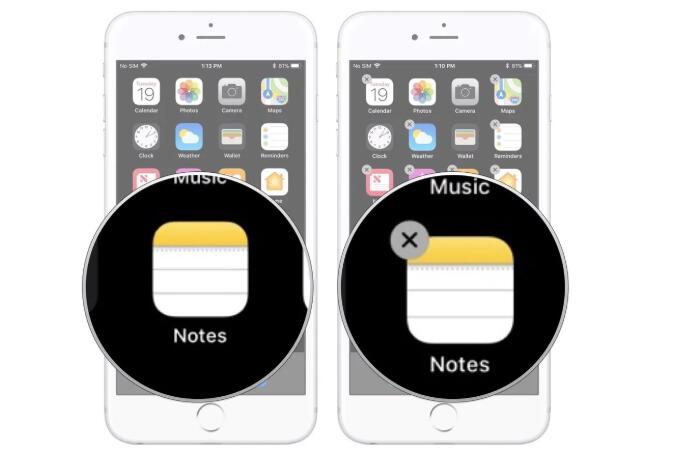
This is an old method of deleting apps. In this method, you simply need to hold the icon of the app that you want to delete and tap ‘x’ when it appears.

Follow these instructions:


On the Home screen of your iDevice, tap and hold the icon of the app that you want to delete.


Keep holding the icon until it starts to jiggle.


Once the ‘x’ appears on the icon, tap on it. The app will be deleted.


B. Visit Your Device Storage Section in Settings

You can also delete apps from the storage section of the Settings app on your device.

Follow these instructions:


Launch the Settings app on your iDevice.


Navigate to General to find the list of installed apps.


From that list, select the app that you want to delete and then tap the Delete App option. The app will be deleted.


C. Delete Unused Apps in Bundle

Sponsor ads:

Gihosoft RePicvid Free Photo Recovery Software provides a free photo recovery software for windows to help users recover the deleted or lost photo for free.

If you lost data after you updated to a new iPhone, you can always use Gihosoft iPhone Data Recovery to get the data back from the old iPhone or backup.You may also like: iphonerecovery.com

7.15.2019

Deal Alert: $50 iTunes Gift Card for $40


Amazon is already offering some pretty sweet discounts on Apple products for Prime Day 2019. Sweetening that deal, the retailer is now running a Lightning deal on App Store gift card where it has discounted the $50 gift card to $40.

While iTunes Gift cards of lower or higher denominations are also available, Amazon is only offering the $10 discount on the $50 gift card. Do note that the gift card will only work in the US iTunes Store and not with other accounts.

The lightning deal itself will last for another 11+ hours but it is likely that the deal will run over before that. The gift card will be physically delivered to your US address and there won’t be an online delivery like some sellers on eBay usually do.

You can use an iTunes gift card towards app purchases on the iOS App Store. Additionally, it can also be used for purchases in the iBooks Store, and the iTunes Store towards your purchase of music, movies, and more. You can also use the iTunes gift card towards an Apple Music subscription which would essentially help you score a subscription to the music streaming service at a discount.Sponsor ads:

Gihosoft RePicvid Free Photo Recovery Software provides a free photo recovery software for windows to help users recover the deleted or lost photo for free.

If you lost data after you updated to a new iPhone, you can always use Gihosoft iPhone Data Recovery to get the data back from the old iPhone or backup.You may also like: iphonerecovery.com


➤ Deal

7.10.2019

Apple Seeds Sixth Beta of iOS 12.4 to Developers

Apple Seeds Sixth Beta of iOS 12.4 to Developers

Apple today seeded the sixth beta of an upcoming iOS 12.4 update to developers, two weeks after seeding the fifth iOS 12.4 beta, and nearly two months after releasing iOS 12.3, a major update that introduced a revamped TV app.


Registered developers can download the new iOS 12.4 beta from Apple's Developer Center or over-the-air once the proper configuration profile has been installed from the Developer Center.


There were no new features discovered in the first five iOS 12.4 betas, so it's not entirely clear what's coming in the update. As a more significant 12.x update, it's possible that the update is focusing on a feature that's not yet available -- the Apple Card.


Apple is planning to release the Apple Card in the summer, so iOS 12.4 could be the update that prepares the iOS operating system for that launch, adding hidden features that will be unlocked when the update becomes available to the public. If we find new features in the sixth beta of iOS 12.4, we'll update this post.


iOS 12.4 may be one of the last updates to the iOS 12 operating system as Apple transitions to iOS 13, set to launch this September.Sponsor ads:

Gihosoft RePicvid Free Photo Recovery Software provides a free photo recovery software for windows to help users recover the deleted or lost photo for free.

If you lost data after you updated to a new iPhone, you can always use Gihosoft iPhone Data Recovery to get the data back from the old iPhone or backup.You may also like: iphonerecovery.com

7.04.2019

Apple iCloud Services and Retail Store Systems Facing Nationwide Outage [Update]


Another day, another outage! Yesterday WhatsApp, Facebook, and Instagram suffered from an outage. Today Apple’s iCloud Services and Retail Store systems are not available for some users. System Status is showing that services like Find My Friends, Find My iPhone, Game Center, Photos and Screen Time are affected.

Users are reporting the outage on social media. Apple says that only some users are affected. However, going by the social media posts the issue seems to be affected quite a lot of people. Meanwhile, Apple is also having an issue with retail store systems. Employees are unable to complete purchases or process support requests.


Shannon Benovitz

@SBenovitz

@AppleSupport when is iCloud going to be working again? My phone is broken and @Apple store says they can’t help me today because it’s a national outage to transfer my data and they have never seen this before.

2

1:23 AM - Jul 5, 2019

Twitter Ads info and privacy

See Shannon Benovitz's other Tweets

Apple has labeled most of the iCloud services as “Users may be experiencing a problem with the service.” Apparently one of the users had visited Apple Store to get her iPhone fixed, however, it was not possible due to the outage. Even Apple Pay is reportedly facing downtime and the payments are not being processed.


wakaidev

@wakaidev

Systems are down completely @apple store international plaza Tampa, Fl. Can’t even get my watch fixed

1

1:27 AM - Jul 5, 2019

Twitter Ads info and privacy

See wakaidev's other Tweets

Update: Nearly all of Apple’s Cloud services are up and running. At the time of writing only iCloud Calendar, Contacts and Reminders are facing issues. Apple has also mentioned that it has resolved two issues related to Apple Pay and issues related to FInd My Friends and Find My iPhone.

Sponsor ads:

Gihosoft RePicvid Free Photo Recovery Software provides a free photo recovery software for windows to help users recover the deleted or lost photo for free.

If you lost data after you updated to a new iPhone, you can always use Gihosoft iPhone Data Recovery to get the data back from the old iPhone or backup.You may also like: iphonerecovery.com

6.23.2019

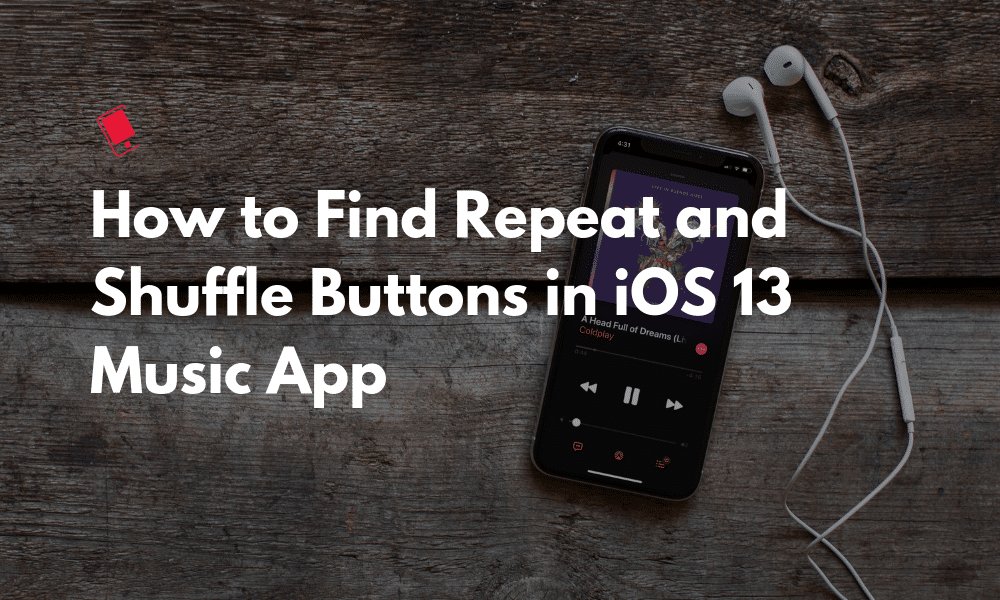
iOS 13: How to Repeat or Shuffle Songs in Music App on iPhone


It feels like moving the Repeat and Shuffle buttons in the Music app is Jony Ive’s personal sadistic pass time. Ever since Apple redesigned the Music app with the modern iOS design in iOS 10, it can’t seem to decide where to put these darn Shuffle and Repeat buttons. Now, 3 years later, Apple has moved them yet again. And just to keep things interesting, made them tiny as well. Here’s how to find the Repeat and Shuffle buttons in iOS 13 Music app.Also Read:h33t proxy
Repeat and Shuffle Songs in iOS 13’s Music App on iPhone

There’s a good reason why Apple moved these buttons. Apple has redesigned the whole Now Playing screen in iOS 13. iOS 10 introduced the scrolling panel. This is where all options and the Up Next queue were hidden below the scroll (and there was no indication to the user that this was, in fact, a scrollable screen).


Thankfully, the scrollable screen is gone. That’s one less frustration to deal with (or one less thing to explain your parents and less tech-savvy friends).

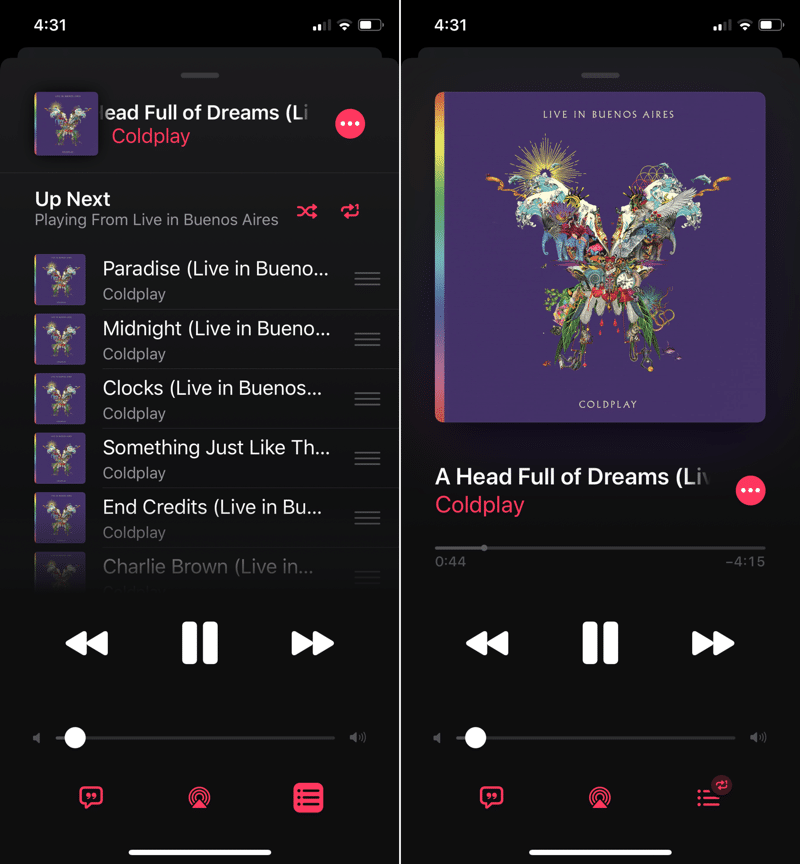
Apple now has three buttons at the bottom. The left and right buttons essentially behave as tabs. The left button brings up the new synced lyrics view. While the right button is for the Up Next.


Yes, Up Next now has a dedicated section. It basically replaces the cover art of the song when the button is pressed.

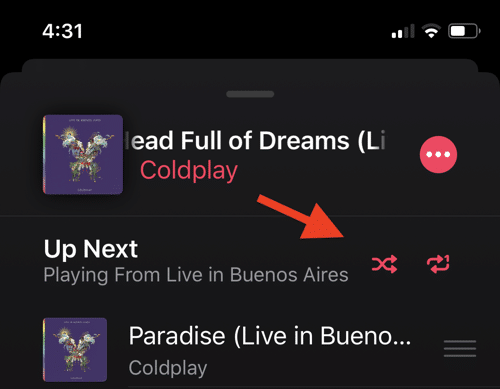
Now, Up Next queue takes up the majority of the screen (and that’s fair). So where does Apple put the Repeat and Shuffle buttons? It’s the two tiny gliphs in grey next to the text that says Up Next. I’ve highlighted it in the screenshot below so you don’t need to squint.


Tap on the Shuffle button and the queue will shuffle instantly. You can tap on the Repeatbutton to repeat the album and then tap again just to repeat the song. When you do have Shuffle or Repeat enabled and you go back to the cover view, the Up Next button will update with a small Repeat icon in the top-right (which, I admit, is a nice touch).

Then again, Apple could have just put these two buttons next to the AirPlay button at the bottom of the screen (but at least we now have one more thing to put in our iOS 14 wishlist).

So that is where you’ll find the Repeat and Shuffle buttons in iOS 13 Music app. Between a rock and a hard place.
Learn More about iOS 13 and iPadOS 13

This is just one small change in iOS 13. There a lot more like this. We’ve compiled the top 25 changes in iOS 13 that you should know about.

If you’ve got the time (and the curiosity), take a look at our mega iOS 13 new features list (100+) to find out every big and small feature in the upcoming iPhone and iPad update.

What do you think about the new place for the Repeat and Shuffle buttons in iOS 13? Do you think they are at their final resting place? Or will Apple move them yet again in iOS 15? Share your thoughts with us in the comments below.

Read more:vidics alternatives

Read more:football live streaming sites

Read more:fmovies to

Read more:pubfilm alternatives

Read more:best android equalizer

6.18.2019

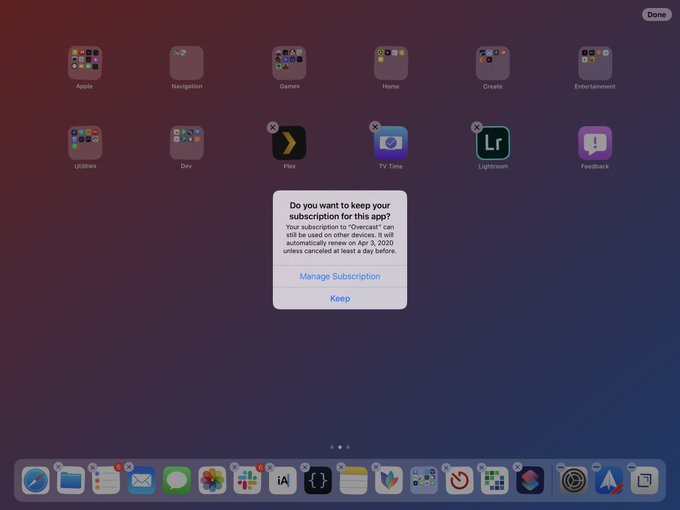
iOS 13 Will Warn Users When Deleting Apps with Active Subscription


With iOS 13 beta 2, Apple has made one little change that will help people who subscribe to a lot of apps and services. If you delete an app with an active subscription from the iOS 13 beta 2 home screen, a prompt will show up informing you about the subscription.

You can either select the “Keep” action in the prompt and not delete the app or tap on “Manage subscription” to go ahead and cancel the subscription. The prompt will also inform you the next date on which the subscription will be renewed.

View image on Twitter


Federico Viticci

✔

@viticci

Never seen this alert before – Apple now tells you if an app you're deleting has a subscription still active. Good move.


(Taken on iOS 13 beta 2.)

2,587

8:39 AM - Jun 18, 2019

551 people are talking about this

Twitter Ads info and privacy

Remember that you can use apps with an active subscription on other iOS devices. If you have a lot of apps with an active subscription, this feature in iOS 13 is going to be a godsend for you. Google already does something similar in Android so it is nice to see Apple include this feature in iOS as well. It is unclear if this feature will also make its way to macOS Catalina or not. The Beta 2 release of the OS does not have any similar feature.

Apple had made it easier to manage app subscriptions with the iOS 12.1.4 updateearlier this year where it added the Manage Subscriptions option in the App Store for users to easily manage their active subscriptions.

Do you think there’s something else that Apple could do to further make it easier to manage app subscriptions in iOS? If so, what? Drop a comment and let us know!

Read more:thewatchseries alternatives

Read more:iphone cleaner

Read:apple imessage for pc

Read:3 Alternative Sites to TamilDbox 2019

Read:update android install Android Q on your smartphone right now 2019

Read:9 Torrent Sites For Comic Books 2019

Read:10 Flashlight Apps for Android Phones 2019