9.26.2019

iOS 13.1 Restricts Fast Charging to 5W for Multiple Wireless Charger


Wireless charging capability debuted with iPhone 8, iPhone 8 Plus and iPhone X in 2017. As expected the latest iPhones support wireless charging. Chargerlabs has conducted some tests to gauge the performance of wireless charging on the iPhone 11 series. Tests have also revealed that fast charging support to multiple wireless chargers has been removed on iOS 13.1.

The tests were conducted on the iPhone 11 series and multiple wireless chargers of different brands were used. As part of the tests, it was found out that the new iPhone 11 series is capable of holding 10W wireless charging for almost 1 hour and 40 minutes. The charging output immediately reached 10W once the phone was switched on. In any case, 7.5W was the power received on the phone’s end. All the tests were conducted on iPhone 11 series running iOS 13.


In the second phase of wireless charging tests, things started looking bleak for the new iPhones. This time around the test was conducted on iPhone 11 series running iOS 13.1. The output power dropped to 6-7w during the test while the power received at the phone’s end dropped drastically to 5W. In other words, the wireless charging speed dropped by nearly 70% on iOS 13.1 as opposed to iOS 13.Also Read:10 eBook reader apps for Android! (Updated 2019)


Furthermore, the wireless charging tests also revealed that multiple wireless charging pads which earlier supported 7.5W could now charge the iPhone 11 at 5W. However, charging speed didn’t drop in wireless pads like Belkin, Anker, Native Union, Logitech. It is worth noting that all the wireless charging pads are available on Apple Store. We are not sure if Apple is throttling the charging speed on some wireless pads.

Apparently Apple has baked in a new feature on iOS 13.1 which allows 7.5W charging only for pads with fixed-frequency regulation while the rest will be restricted to 5W charging.

[via Chargerlabs]

9.25.2019

Solutions to Fix iPhone 11 Stuck on Apple Logo after iOS 13 Update


Solutions to Fix iPhone 11 Stuck on Apple Logo after iOS 13 Update

Here are 4 ways on how fix iPhone 11 stuck on Apple Logo after iOS 13 update. Although they are not 100% workable, you can still give them a free try.
Way 1: Force restart the Device

The first quick option to try and fix the iPhone that is stuck on the Apple logo after updating to iOS 13 is to force restart your device. With force restart, it is not a guarantee that it will fix the issue but it can help. Moreover, you will not lose any data. Here is how to force restart iPhone 11 when stuck on Apple Logo.

Step 1. Take your iPhone 11, press Volume Up button and quickly release it.


Step 2. Next, press Volume Down button and quickly release it.

Step 3. After that, press and hold the side button until you see the Apple logo is when you can release the buttons. Your iPhone 11 should then start normally.
Way 2: Restore iPhone in Recovery Mode

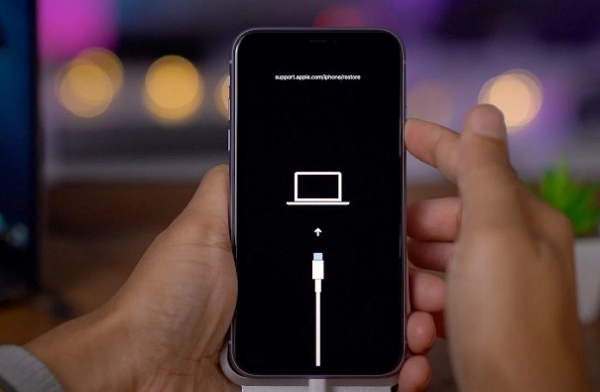
If force rebooting doesn't fix your iPhone 11 stuck on Apple logo issue, try to your iPhone into recovery mode. Using recovery mode will work but it is sure to lose your iPhone data. With this option, you need to ensure that you do a back of your iPhone data and update your iTunes application on your computer. From there you can now follow these steps on how to restore iPhone 11 stuck in Apple logo in Recovery Mode.

Step 1. Open iTunes on your computer and link the iPhone to the computer using a USB cable.

Step 2. Next, press volume up button and quickly release it. Also, press the volume down button and quickly release it.Also Read:z shadow hack

Also Read:YoutubeMultiDownloader Alternatives & Similar Sites


Step 3. From there, press and hold the Side button until you see the connect to computer screen on your iPhone 11.


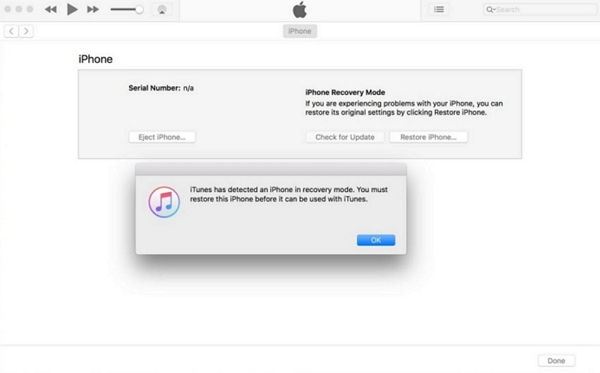
Step 3. Now that your iPhone in recovery mode, turn to iTunes screen and click on "Restore" button.


Upon following the instruction displayed on the screen you should eventually be able to fix your iPhone 11 stuck on Apple logo.
Way 3: Restore iPhone In DFU Mode

The last method that you can use to restore your iPhone 11 stuck on Apple logo is restoring it in DFU mode. This method is not recommended since you will lose your data permanently. You can only use it if you have tried all the other methods and they have not worked. Plug your iPhone X or iPhone 8 into your Mac or PC. Follow these steps:

Step 1. Open iTunes and connect your iPhone 11 to the computer.

Step 2. Next, press Volume Up button and release it immediately.

Step 3. After that, press Volume Down button and release it immediately.

Step 4. Next, hold the Power/Slide button until the screen disappears

Step 5. Now, press and hold the Volume Down button and the Side button simultaneously for about 5 seconds before releasing the Side button and continue to hold the Volume Down button. When you see the "iTunes has detected an iPhone in recovery mode". Appear you can now release the button.

Step 6. Finally, click the "OK" button on the iTunes popup window and then click "Restore" to restore your iPhone 11 in DFU mode.


Part 4: If the Problem Is Caused by Hardware Problems?

If you have tried all the four methods and your iPhone 11 is not fixed, then it could be a hardware problem. Therefore, go to the Apple store and let them diagnose the problem. If your warrant has expired the lookup for a professional technician who can help you out.
Conclusion:

In a nutshell, restoring your iPhone 11 that is stuck on Apple logo is easy. You can try to force restart before deploying iMyFone Fixppo option. With the DFU mode and recovery mode, you will fix your iPhone but lose data hence it is worth using iMyFone Fixppo option.

9.17.2019

Google’s Key Moments Makes It Easier to Search for Content within Videos

Thanks to Google it is easy to search for stuff on the Internet. The search giant has taken the video search a step further by adding a new feature. Google has detailed how it will display videos in search results. Starting now, Google will also highlight the relevant part of the video in the search engine and calls it “Key Moments.”
The new feature is based on timestamps added by the video creator. It is pretty easy to skim through the text and find out the relevant parts. However, it becomes fairly difficult to do so in longer videos. Furthermore, the task only becomes tougher in regions will poor internet connectivity. The new search feature lets you search for content within a video.
Videos aren’t skimmable like text, meaning it can be easy to overlook video content altogether. Now, just like we’ve worked to make other types of information more easily accessible, we’re developing new ways to understand and organize video content in Search to make it more useful for you.- Prashant Baheti, Product Manager, Search.
Starting now Google’s search results will feature key moments in the videos. The feature is particularly useful in searching for specific things within a long how-to video or speeches or a documentary. Search will add a link to the key moments within the video and this will help you understand whether or not the video has the content you are searching for. The links to Key moments will appear only for Search in English and for YouTube videos wherein creators have added timestamps in the description.
Content creators need to markup their videos for specific content. Google is apparently implementing the feature for other video publishers like NDTV and CBS Sports. Maybe in the future, Google will use machine learning to automatically create timestamps for videos.Also Read:15 Exhentai proxy sites

[via Google]

8.14.2019

Recalled MacBook Pros with Faulty Batteries Banned from Flights by FAA


A couple of months ago, Apple announced a recall of selected MacBook Pro variants due to battery safety concerns. The U.S. Federal Aviation Administration has now banned such MacBook Pro models on flights due to safety concerns. It has also informed all major flight operators in the US about the recall.

It has also reminded airlines of the 2016 safety instructions which made it clear that goods with recalled batteries cannot be carried by passengers in flight as carry-on item or as checked-in luggage. The European Union Aviation Safety Agency has already issued a warning about the recalled MacBooks to all airlines in the EU earlier this month.

In a statement, the U.S. Federal Aviation Administration said it was “aware of the recalled batteries that are used in some Apple MacBook Pro laptops” and stated that it alerted major U.S. airlines about the recall.

Apple has recalled the 15-inch MacBook Pro sold between September 2015 and February 2017 due to concerns with its battery. As revealed by the CPSC, the recall affects around 432,000 MacBook Pro units in the United States and 26,000 units in Canada. Apple had received 26 reports about the affected model’s battery overheating, which included five reports of minor burns, one of smoke inhalation, and 17 of damage to personal property.

When it announced the recall, Apple recommended owners of affected MacBook Pro models to immediately contact their nearest service center to get the battery replaced for free. If you have not already, make sure to check that your 15-inch MacBook Pro’s battery is not affected by the recall from this page.If you lost data after you updated to a new iPhone, you can always use Gihosoft iPhone Data Recovery to get the data back from the old iPhone or backup.You may also like: iphonerecovery.com


[Via Bloomberg]

7.25.2019

Apple Acquiring Intel’s Smartphone Modem Business for $1 Billion


As rumored, Apple has acquired the majority of Intel’s smartphone modem business. The acquisition will see Apple paying Intel $1 billion and will see 2,200 Intel employees join Apple along with the transfer of IP, equipment, and leases.

The announcement comes after weeks of rumors that Apple was interested in Intel’s modem business.

Acquiring Intel’s modem business will provide Apple will over 17,000 wireless patents related to modem architecture and operation. Intel is only selling its smartphone modem business here, with the company still having the ability to create modem for non-smartphone devices like PCs, autonomous vehicles etc.

“This agreement enables us to focus on developing technology for the 5G network while retaining critical intellectual property and modem technology that our team has created,” said Intel CEO Bob Swan. “We have long respected Apple and we’re confident they provide the right environment for this talented team and these important assets moving forward. We’re looking forward to putting our full effort into 5G where it most closely aligns with the needs of our global customer base, including network operators, telecommunications equipment manufacturers and cloud service providers.”

By offloading its loss-making smartphone modem business to Apple, Intel would be able to focus its 5G efforts in other areas. Apple and Intel expect the acquisition to complete by the end of this year pending all regulatory approvals.

Intel started supplying modem to Apple with the iPhone 7 in 2016. Before that, Apple had long relied on Qualcomm for its baseband requirements but licensing issues with the San Diego company forced it to look for alternatives. While Intel was able to break into Apple’s supply chain, its modem underperformed when compared to that of Qualcomm. With the 2018 iPhone lineup, Apple entirely switched over to Intel for its modem requirements as its tussle with Qualcomm intensified which saw both companies sue each other in a number of countries.

Ultimately, right before the court proceedings were about to start in the United States, Apple and Qualcomm settled the matter outside of court with a multi-billion dollar agreement. Among other reasons, Apple was forced to settle with Qualcomm because Intel was not able to stick to its promised 5G modem development timeline which put Apple’s plan to launch a 5G iPhone in 2020 in jeopardy. The settlement between Qualcomm and Apple led Intel to announce that it is exiting the smartphone modem business entirely.Also Read:Music maker app for android
Also Read:best android mmorpg
[Via Apple]

7.18.2019

iOS 13: Make it Easier to Delete Apps from iPhone/iPad


Part 1: iOS 13 Delete Apps from Update List

Deleting apps from Update List is quite easy on iOS 13. The process involves only 4 steps. These sections are located under the Personalized Recommendations. One thing to note here is that you won’t see the Pending Updates option if there are no updates available for apps. Similarly, the Updated Recently section will be hidden if no apps have been recently updated or downloaded.

Steps to Delete Apps from Update List:


Launch App Store on your iPad with iPadOS or iPhone with iOS 13.


Tap on your user ID shown on the top-right corner of the interface.


On the next screen, find and scroll to the section called Pending Updates or Updated Recently.


Now swipe left on your desired listed app that you want to delete and tap on the Delete option.


You will need to confirm your action. After that, the app will be deleted.
Part 2: Other Effective Ways to Delete Apps in iOS 13

Following are some other effective ways to delete apps in iOS 13:
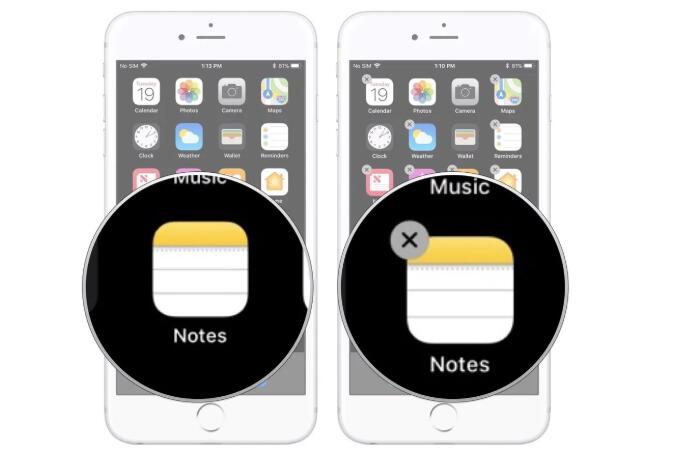
A. Tap the “x” on the Icon

This is an old method of deleting apps. In this method, you simply need to hold the icon of the app that you want to delete and tap ‘x’ when it appears.

Follow these instructions:


On the Home screen of your iDevice, tap and hold the icon of the app that you want to delete.


Keep holding the icon until it starts to jiggle.


Once the ‘x’ appears on the icon, tap on it. The app will be deleted.


B. Visit Your Device Storage Section in Settings

You can also delete apps from the storage section of the Settings app on your device.

Follow these instructions:


Launch the Settings app on your iDevice.


Navigate to General to find the list of installed apps.


From that list, select the app that you want to delete and then tap the Delete App option. The app will be deleted.


C. Delete Unused Apps in Bundle

Sponsor ads:

Gihosoft RePicvid Free Photo Recovery Software provides a free photo recovery software for windows to help users recover the deleted or lost photo for free.

If you lost data after you updated to a new iPhone, you can always use Gihosoft iPhone Data Recovery to get the data back from the old iPhone or backup.You may also like: iphonerecovery.com

7.15.2019

Deal Alert: $50 iTunes Gift Card for $40


Amazon is already offering some pretty sweet discounts on Apple products for Prime Day 2019. Sweetening that deal, the retailer is now running a Lightning deal on App Store gift card where it has discounted the $50 gift card to $40.

While iTunes Gift cards of lower or higher denominations are also available, Amazon is only offering the $10 discount on the $50 gift card. Do note that the gift card will only work in the US iTunes Store and not with other accounts.

The lightning deal itself will last for another 11+ hours but it is likely that the deal will run over before that. The gift card will be physically delivered to your US address and there won’t be an online delivery like some sellers on eBay usually do.

You can use an iTunes gift card towards app purchases on the iOS App Store. Additionally, it can also be used for purchases in the iBooks Store, and the iTunes Store towards your purchase of music, movies, and more. You can also use the iTunes gift card towards an Apple Music subscription which would essentially help you score a subscription to the music streaming service at a discount.Sponsor ads:

Gihosoft RePicvid Free Photo Recovery Software provides a free photo recovery software for windows to help users recover the deleted or lost photo for free.

If you lost data after you updated to a new iPhone, you can always use Gihosoft iPhone Data Recovery to get the data back from the old iPhone or backup.You may also like: iphonerecovery.com


Deal